
A step-by-step guide with real examples
Most people still don’t realize this, but ChatGPT Projects is one of the most powerful features OpenAI has ever shipped.
And yes — it’s now available to everyone. Even free accounts.
Today, I’ll walk you through:
- What Projects actually are
- How they work
- How they differ from regular chats
- How to use Projects for real, ongoing work
- How to combine them with files, instructions, deep research, and tools
- A few advanced tricks people almost never talk about
Let’s get started.
What Exactly Is a Project?
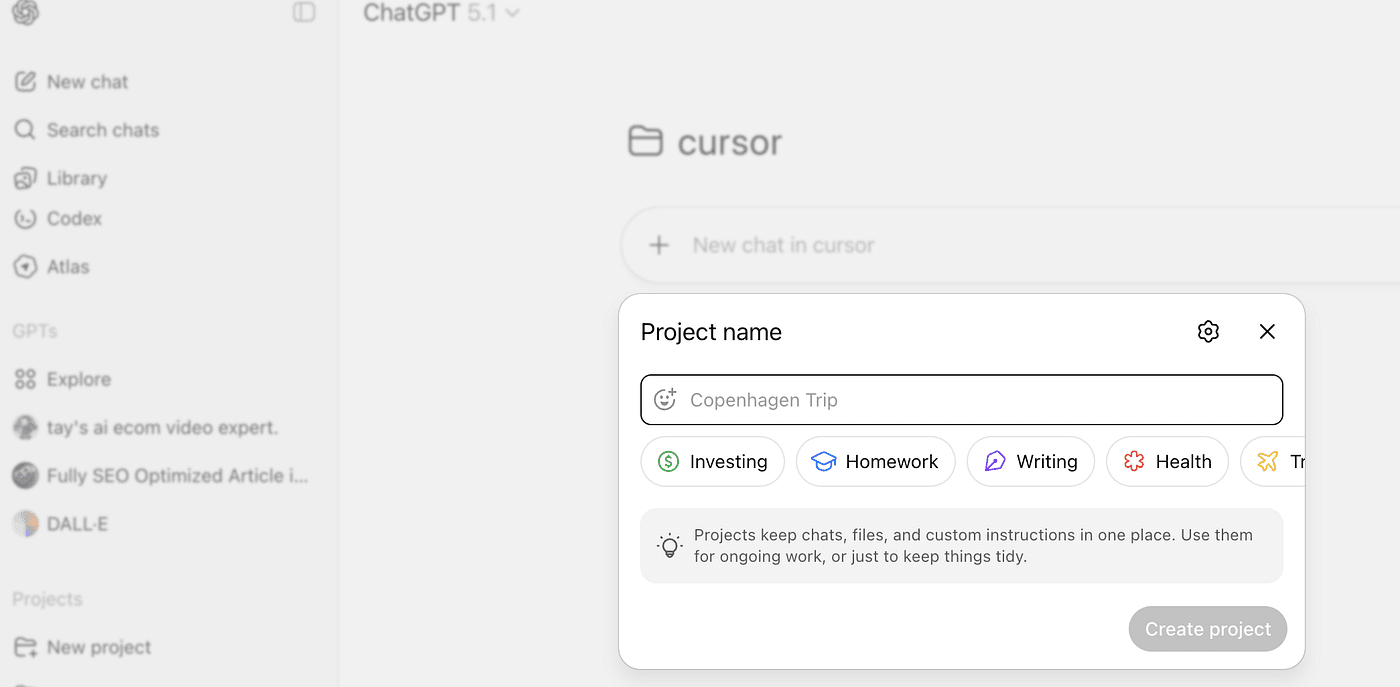
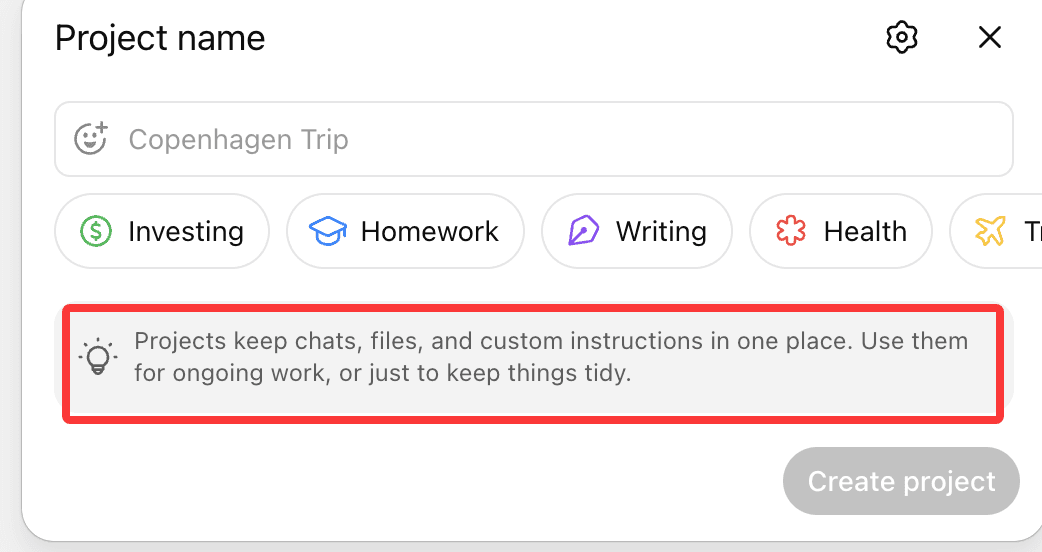
A Project keeps all your chats, memory, and instructions in one place, dedicated to a single theme or workflow.
If a normal chat is a one-off conversation,
a Project is a living workspace.
You can return to it every day, refine it, feed it documents, and let it grow more accurate over time.
If you’ve used Custom GPTs, the concept is a bit different:
- A Custom GPT is built for a fixed, repeatable task.
- A Project evolves with you — you keep adding context, files, ideas, and instructions.
For example, I keep a Project called “Investing ”.
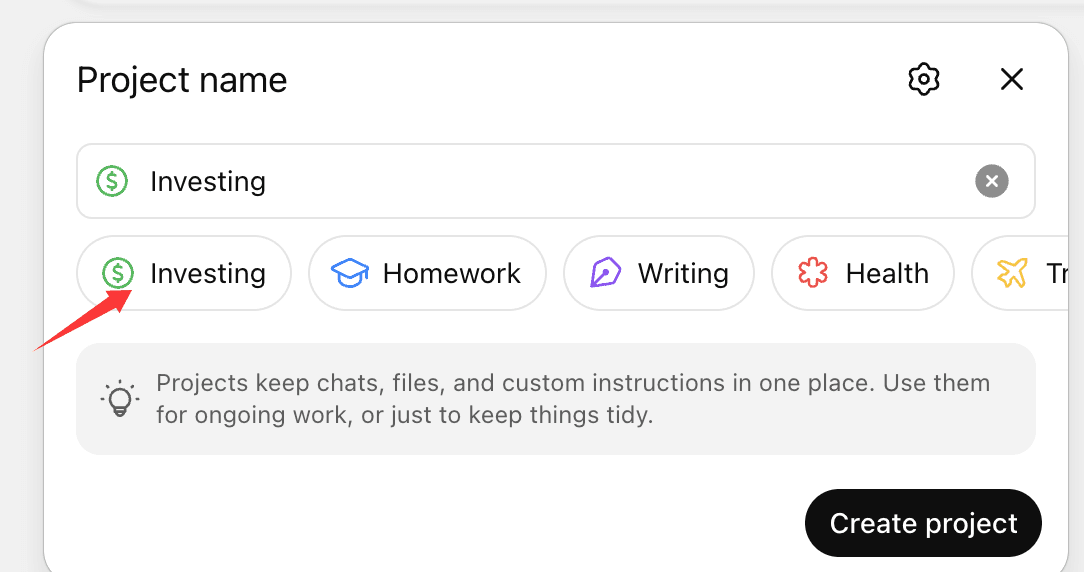
Every time I return, it remembers everything we’ve discussed about that topic.
The Most Important Setting (Most People Miss This One)
Inside every Project, there’s a setting called Memory.
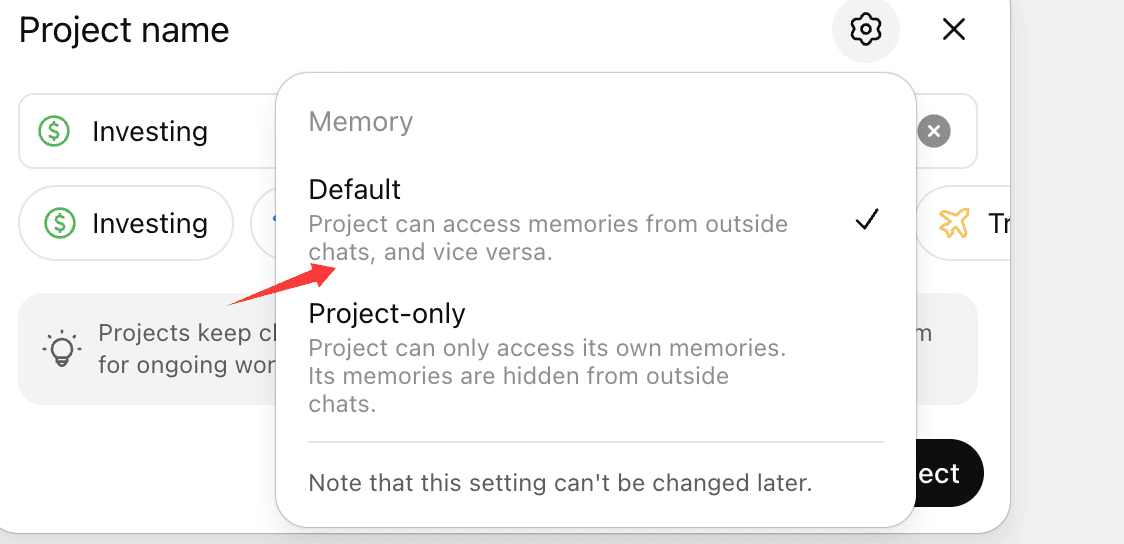
The default option allows the Project to use your general ChatGPT memory — the same memory shared across all chats.
But here’s the killer feature:
You can switch the Project to “Project-only memory.”
This means:
- The Project becomes completely isolated
- It won’t pull irrelevant memories from past chats
- All memory stays inside this Project only
This is what makes Projects truly powerful.
After switching the setting, I name my Project.
In my example: “ Writing .”
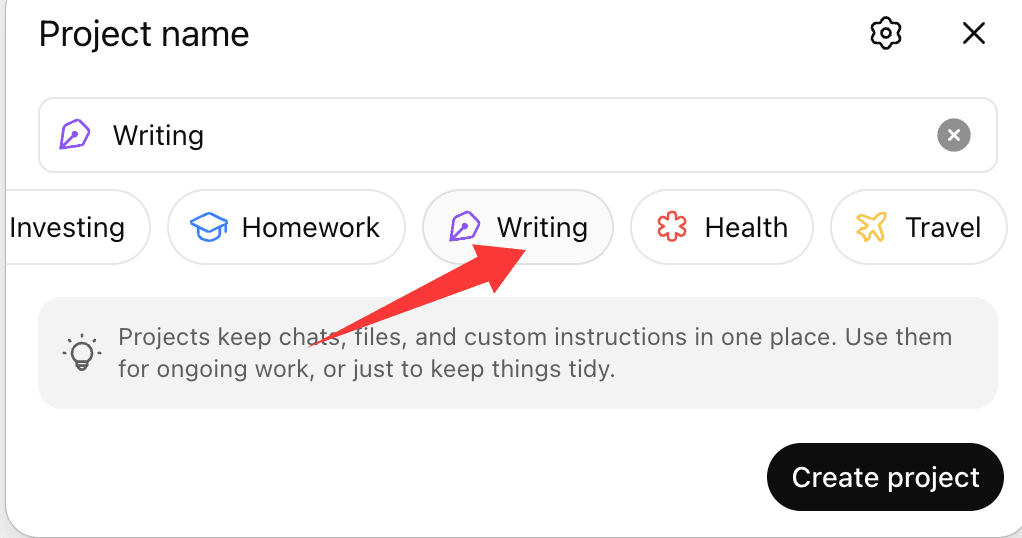
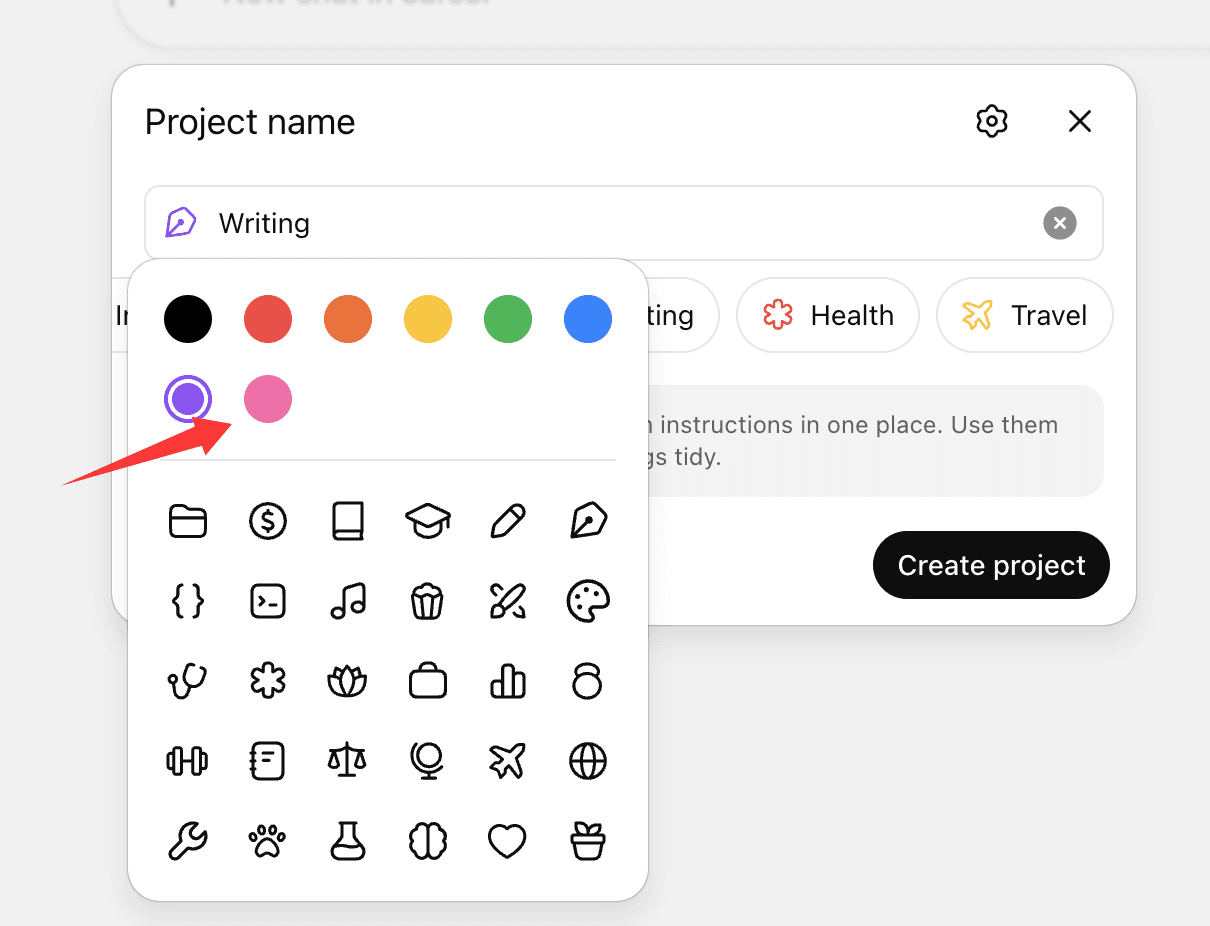
You can choose any icon or color — doesn’t matter.
What You Can Store Inside a Project
Inside a Project, you can add:
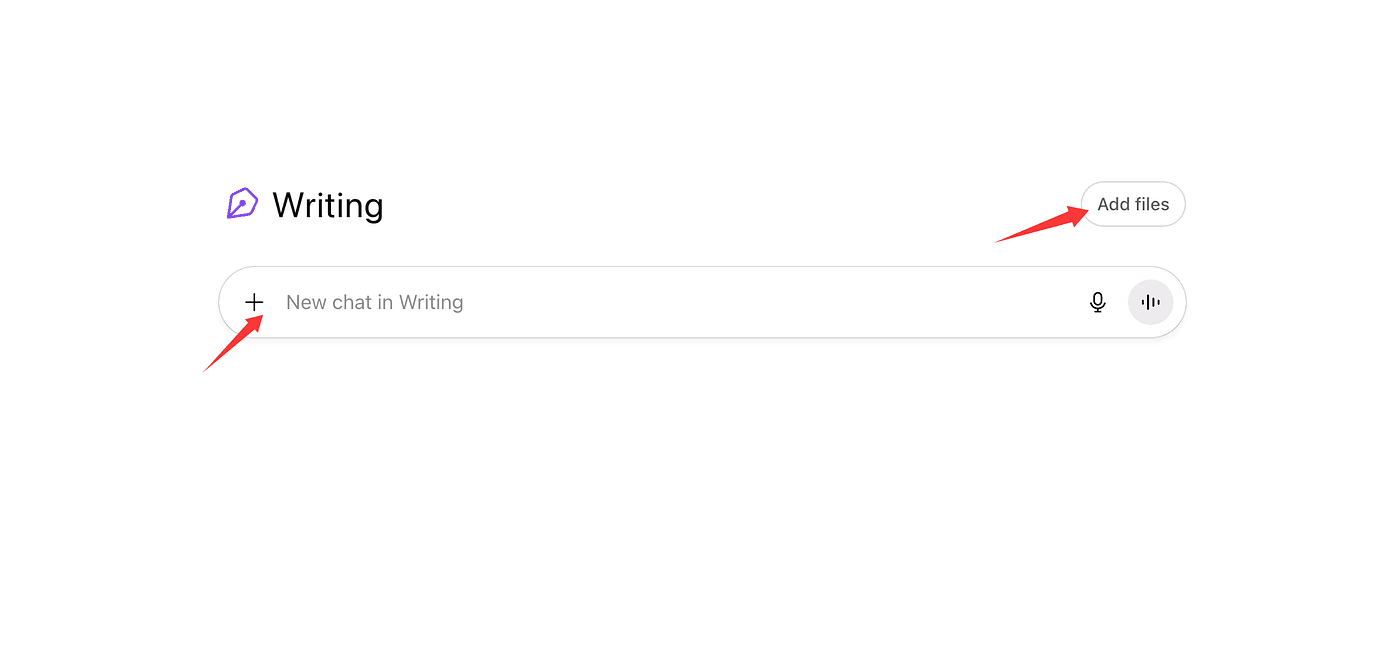
- PDF documents
- Word files
- Code files
- Images
- Research notes
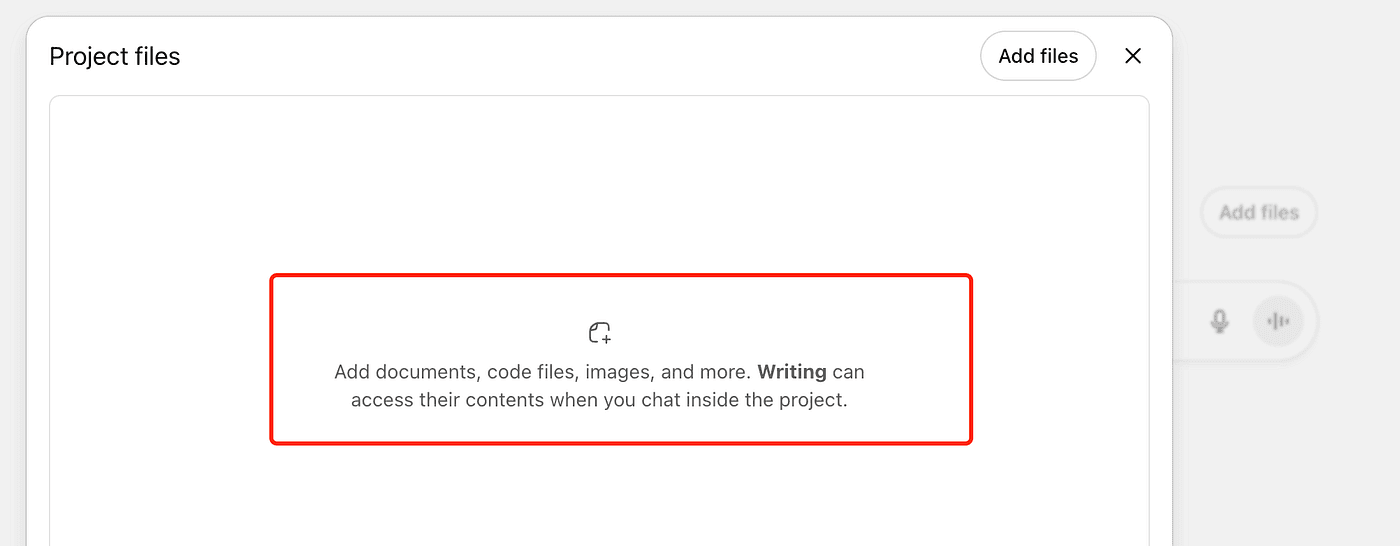
These become part of your knowledge base, and the Project can reference them any time.
This feature alone is incredibly powerful — but it’s not always required.
Sometimes, you just want a memory-clean workspace without any documents.
You can also import files from Google Drive, and ChatGPT can interact with them naturally.
Of course, all other tools still work inside Projects:
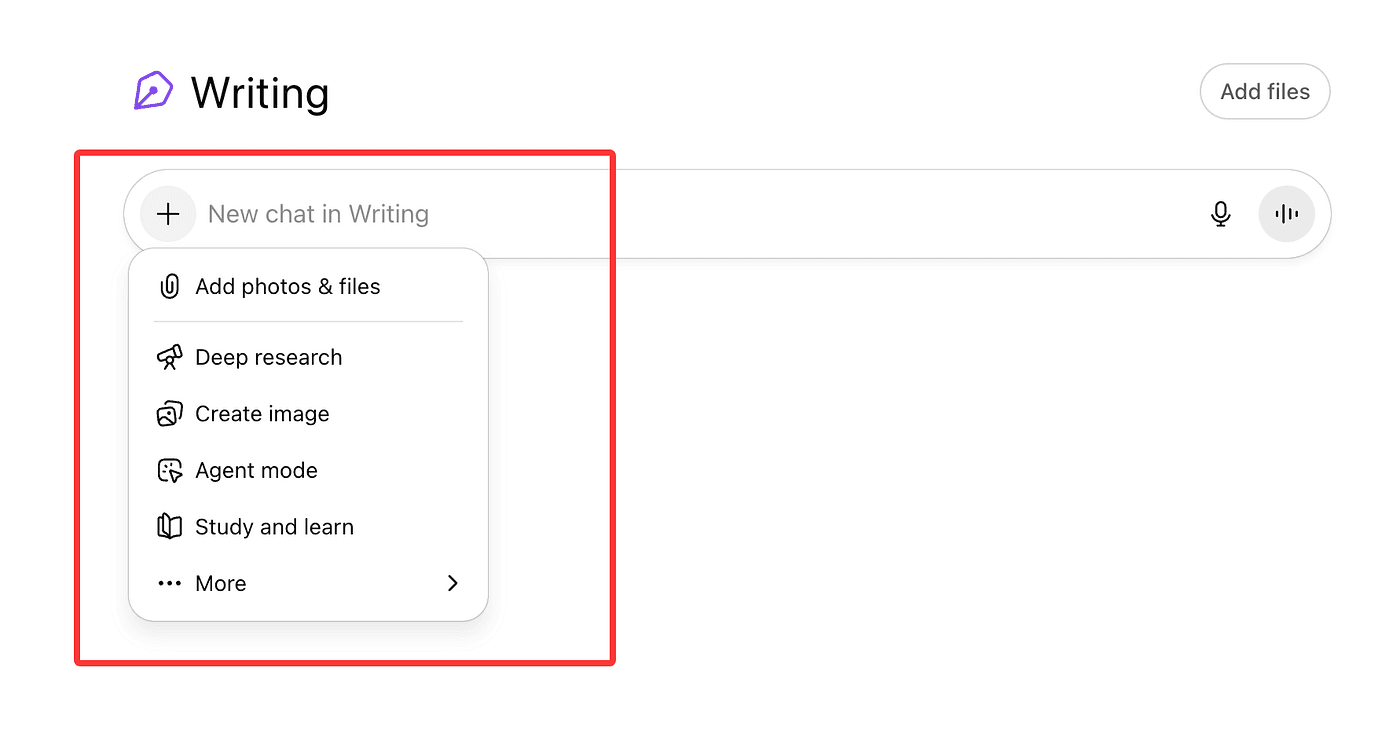
- Web search
- Deep Research
- Image generation
- Data analysis
- File uploads
This combination is what makes Projects unlike anything else in ChatGPT.
Custom Instructions — The Real Superpower
Every Project has its own instruction system.
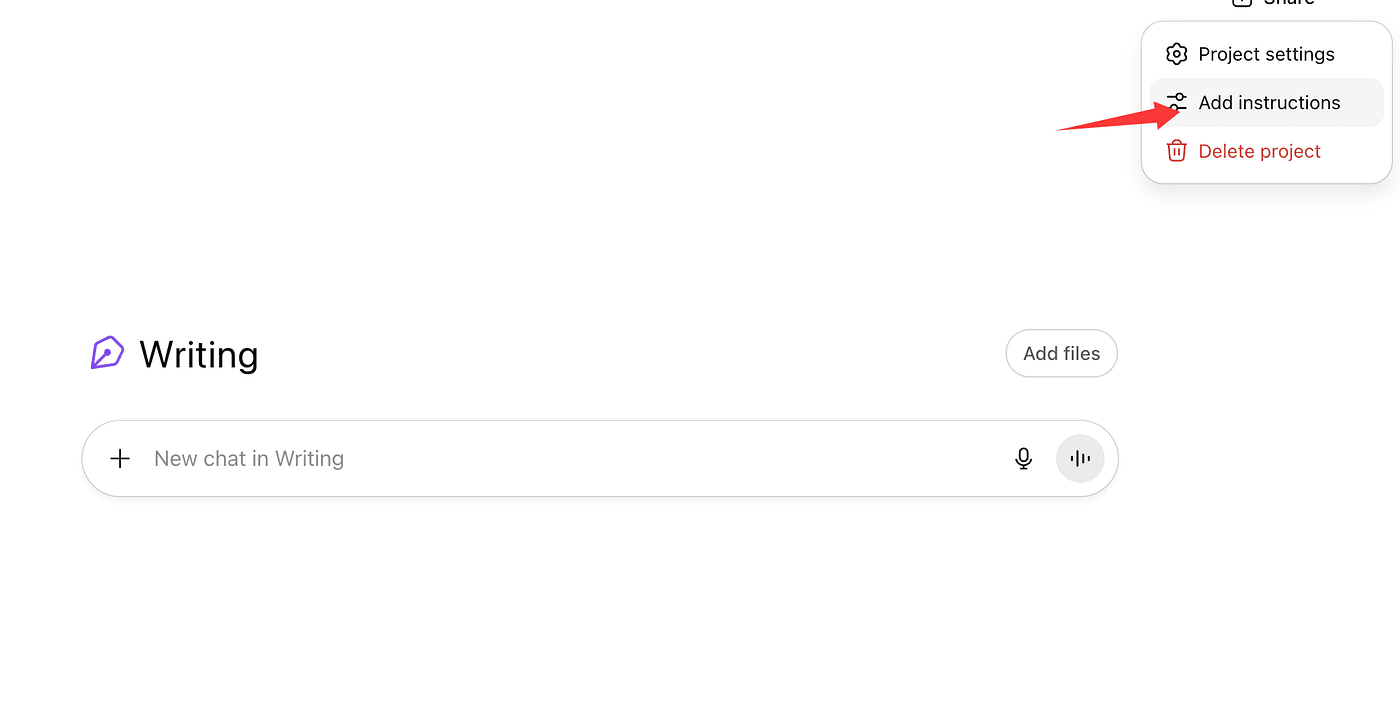
This is different from your global ChatGPT instructions.
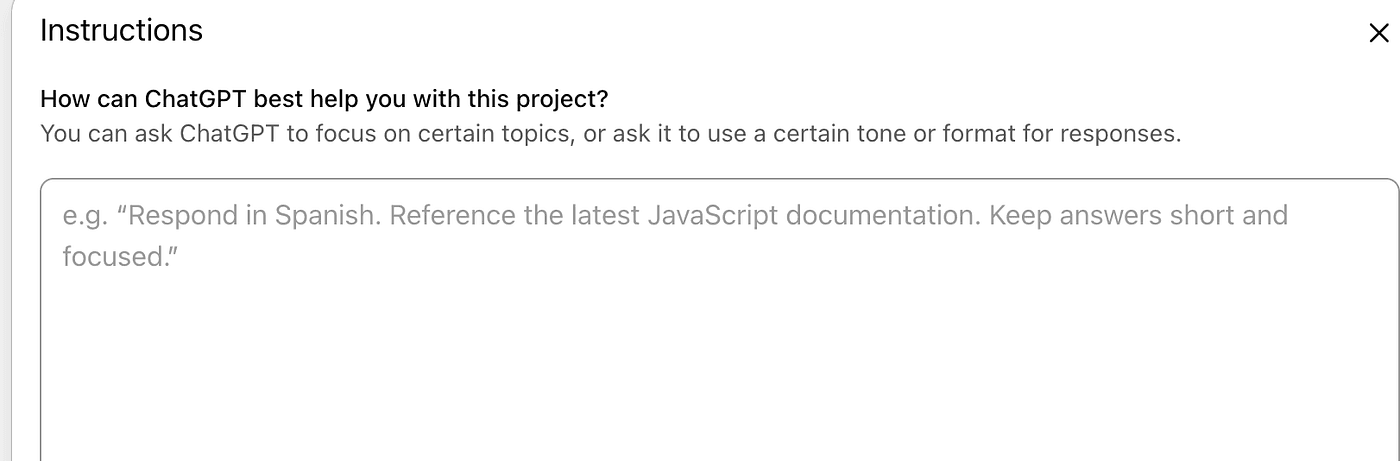
Here, you can define exactly how ChatGPT should behave only inside this Project.
For example, I might add:
Objective: To plan the content of my upcoming articles.
Keep the answers to five points or less.
Use a relaxed tone.
Please ask follow-up questions if you need more information.
I treat this as a system prompt — a set of rules that shape how the Project works.
I always include:
- A clear objective
- Output formatting
- Tone
- Behavioral rules
After saving, the Project will follow these rules automatically.
Next: Building the Knowledge Base
I usually refine the instructions first.
Then I start adding documents.
For example, I might:
- Upload my best-performing Medium articles
- Add screenshots of thumbnails
- Add my content structure notes
- Upload deep research reports I generated earlier
Here’s one example from my workflow.
I first run:
“Research the elements of excellent Medium or blog articles and generate a complete report.”
Deep Research begins by asking clarifying questions.
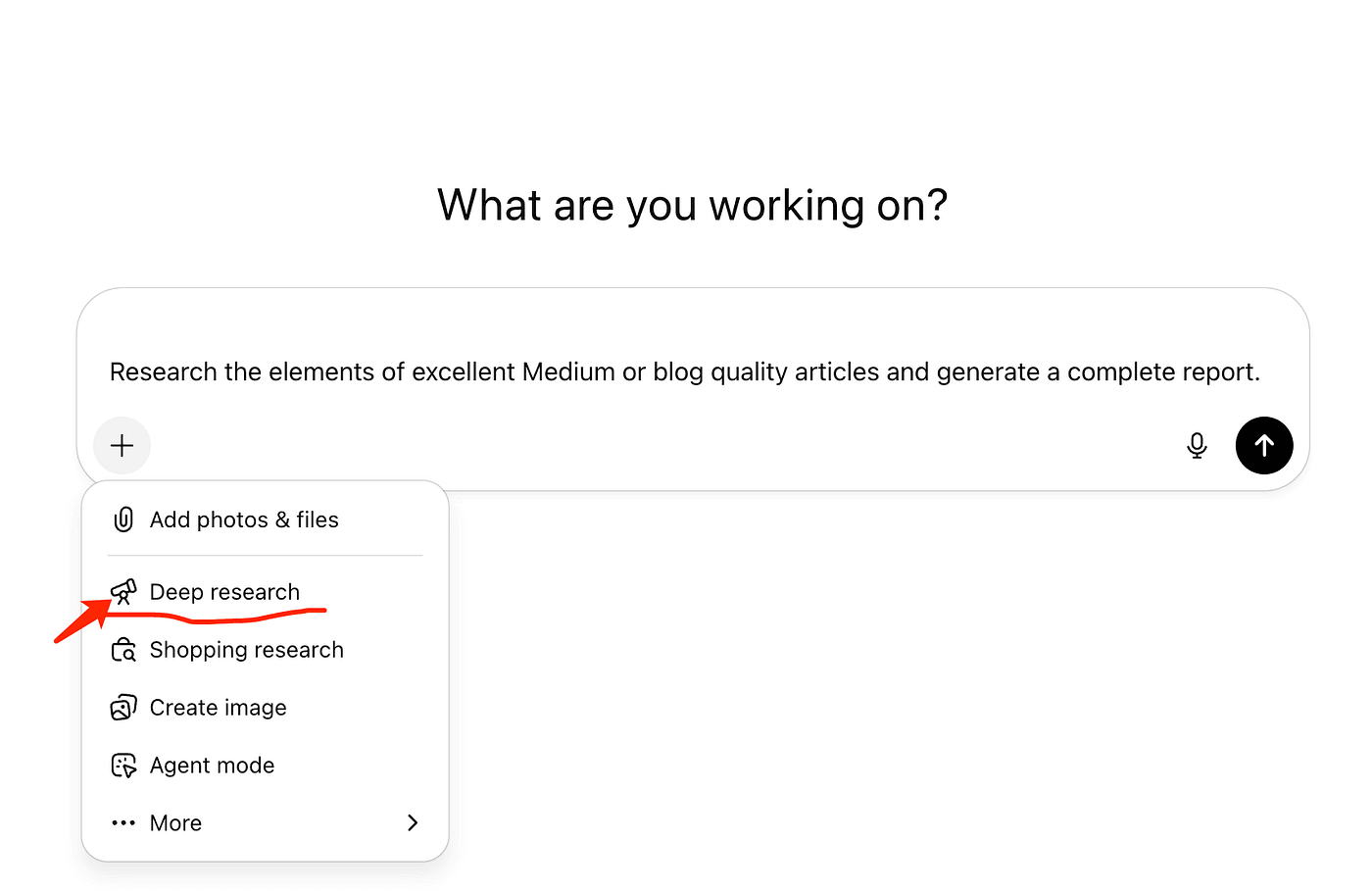
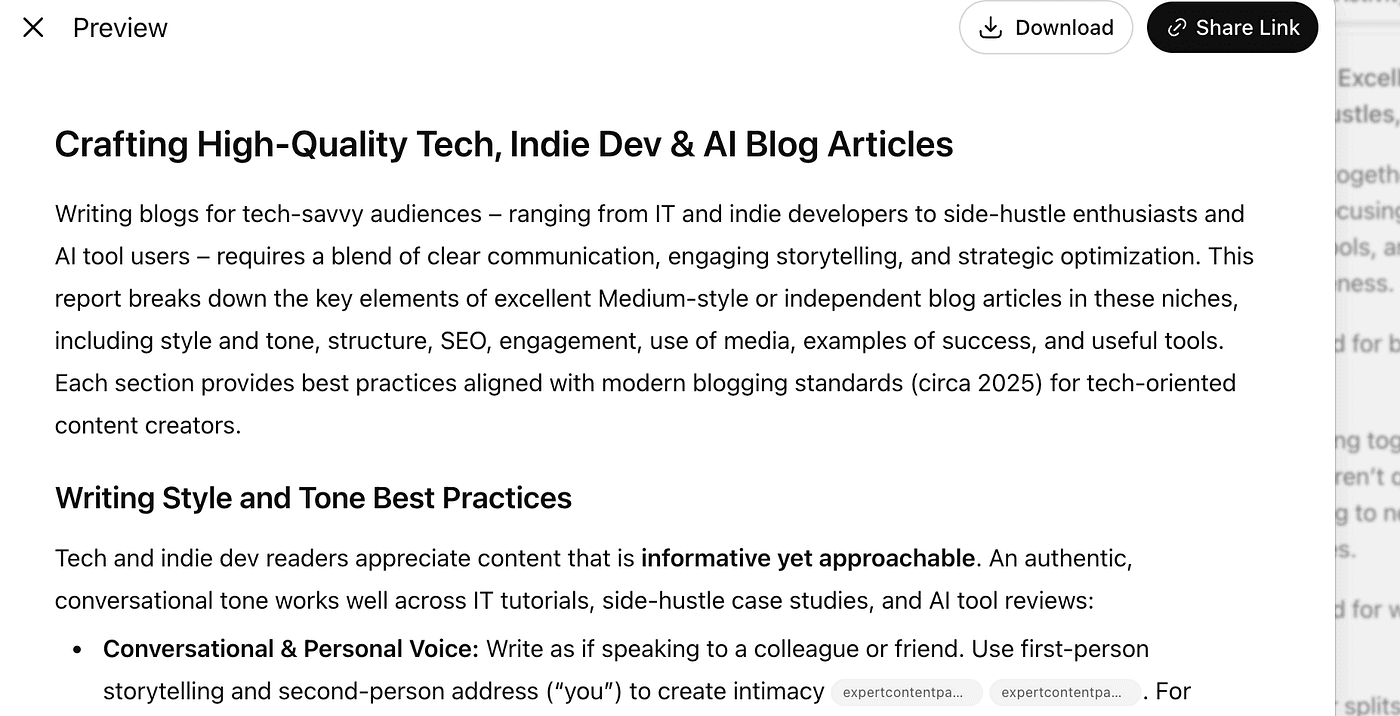
Then it scans hundreds of sources and builds a large, detailed report.
I download it as a Word file, clean it up, and upload it into the Project as part of the knowledge base.
We can even import our own Medium articles into a ChatGPT Project. Just like when exporting Medium posts for WordPress migration, Medium allows us to export all our articles at once. The exported package includes not only the full article text, but also metadata such as claps, comments, publication dates, reading time, and engagement details.
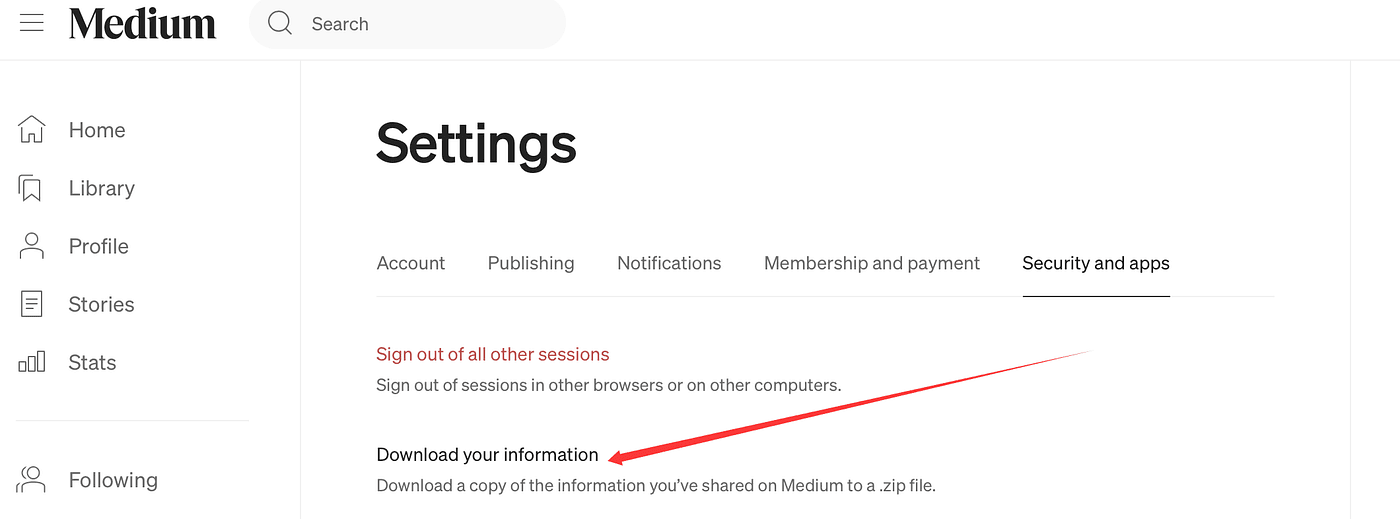
Once exported, you can simply drop the entire dataset into your ChatGPT Project — and let the Project analyze everything in one place.
You can read this article.
If you’re on a free plan, you can upload up to 5 files.
Paid plans go up to 20–40 files, depending on your tier.
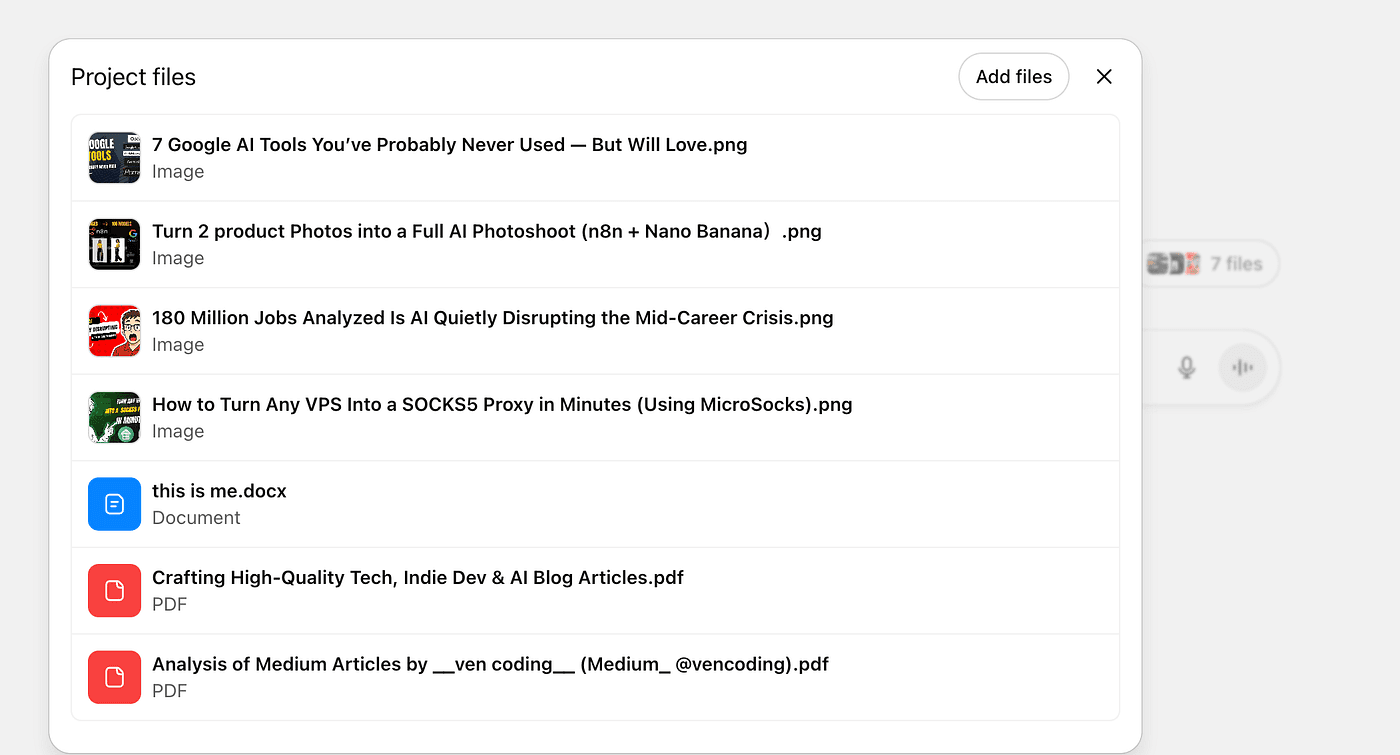
But honestly — you rarely need more than five.
One well-organized research file is more valuable than twenty messy ones.
Using the Project to Analyze My Own Medium Data
Next, I want the Project to analyze my past Medium titles.
So I ask:
“I need to analyze data from my Medium posts to identify the top three topics based on past titles.”
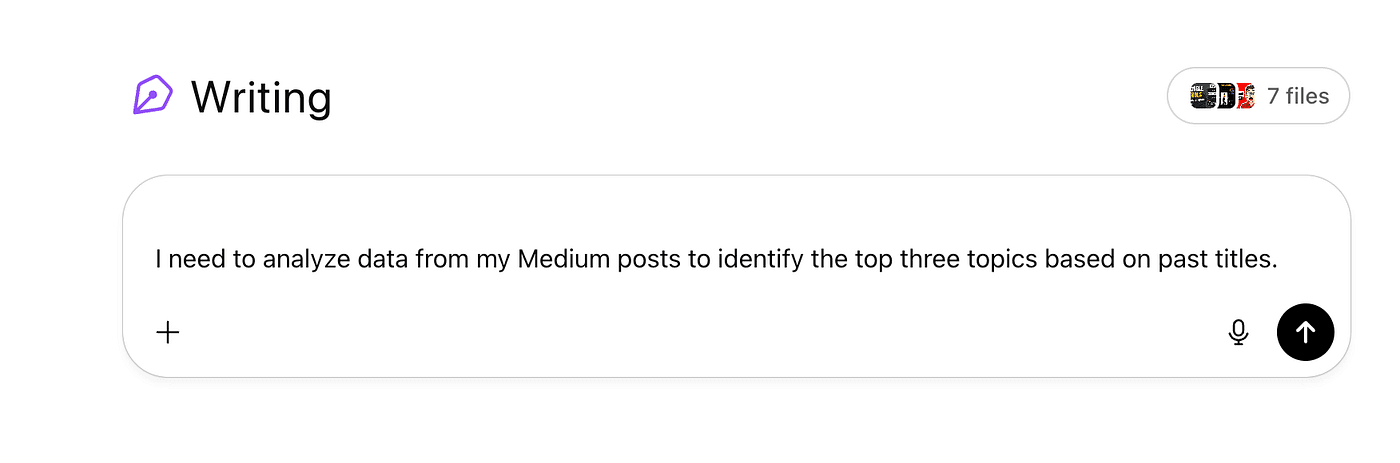
I have more than 70 posts.
Doing this manually would be a headache.
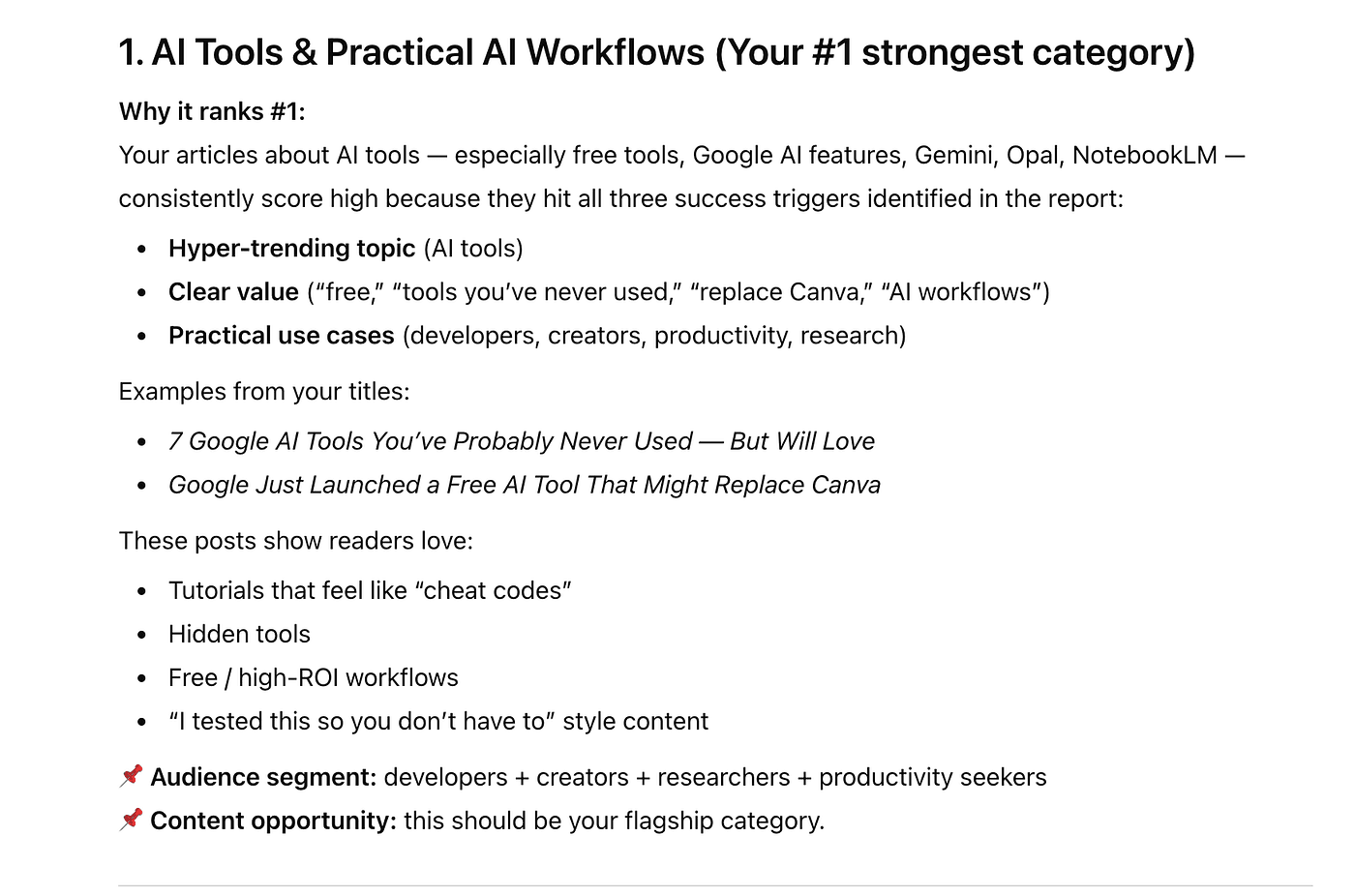
But because I already uploaded my articles, and the Project has context from my instructions, the result becomes extremely accurate.
It tells me:
- AI tools
- AI workflows
- Developer automation
These are my top-performing themes.
And now — the Project remembers this permanently.
Every future prompt is enriched with this insight.
Creating My 30-Day Content Calendar
Next prompt:
“Based on my past experience and Medium trends, help me draft a 30-day content calendar with 5 articles per week, including tentative titles, eye-catching ideas, key materials, and a table with status columns.”
And boom — it generates:
- 4 weeks
- 5 posts per week
- Titles
- Hooks
- Key materials to prepare
- A table for tracking progress
I can export this to Google Sheets or share it with my team.
This entire workflow took maybe 10 minutes.
Using Projects for Product Documentation (Real Example)
Another Project I created is for my Java security product.
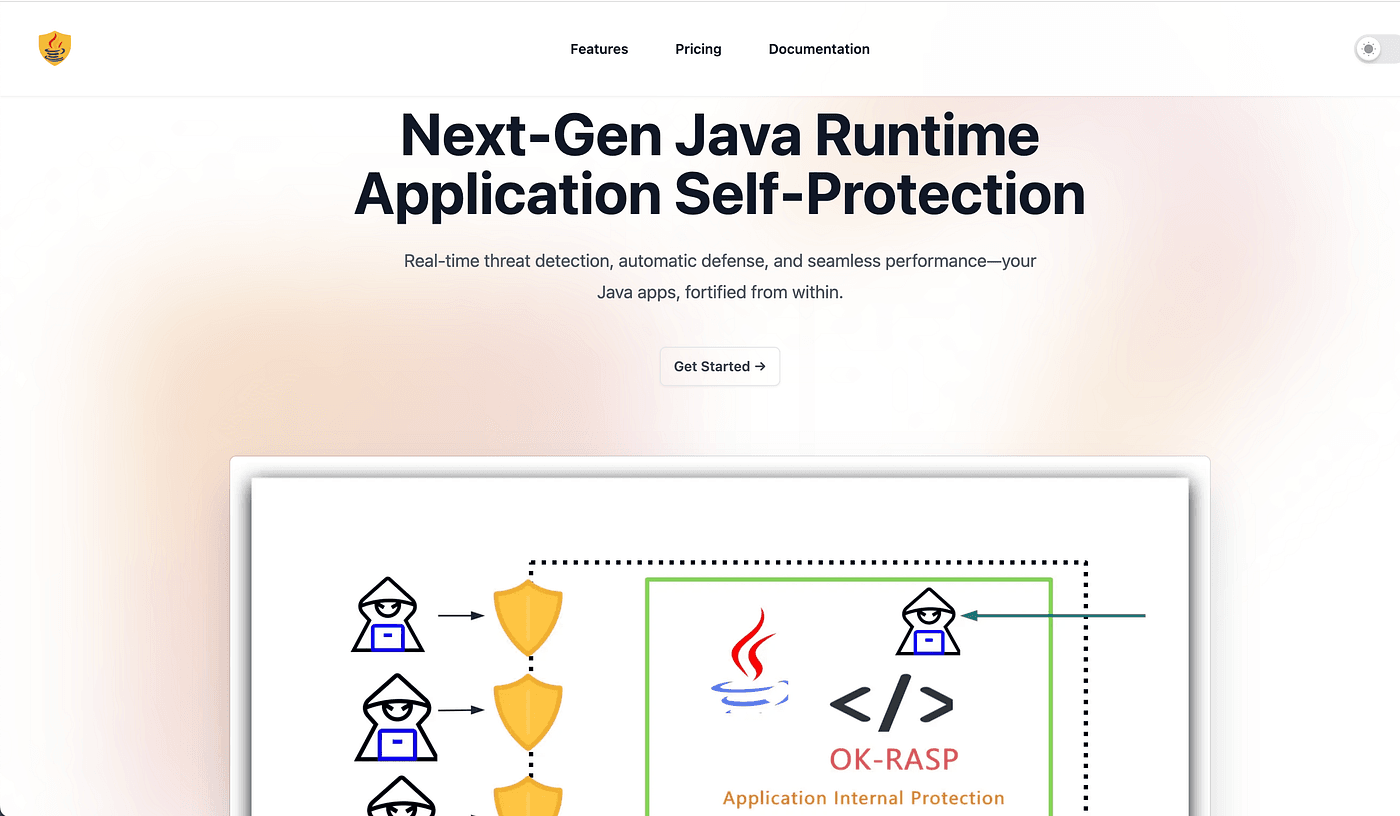
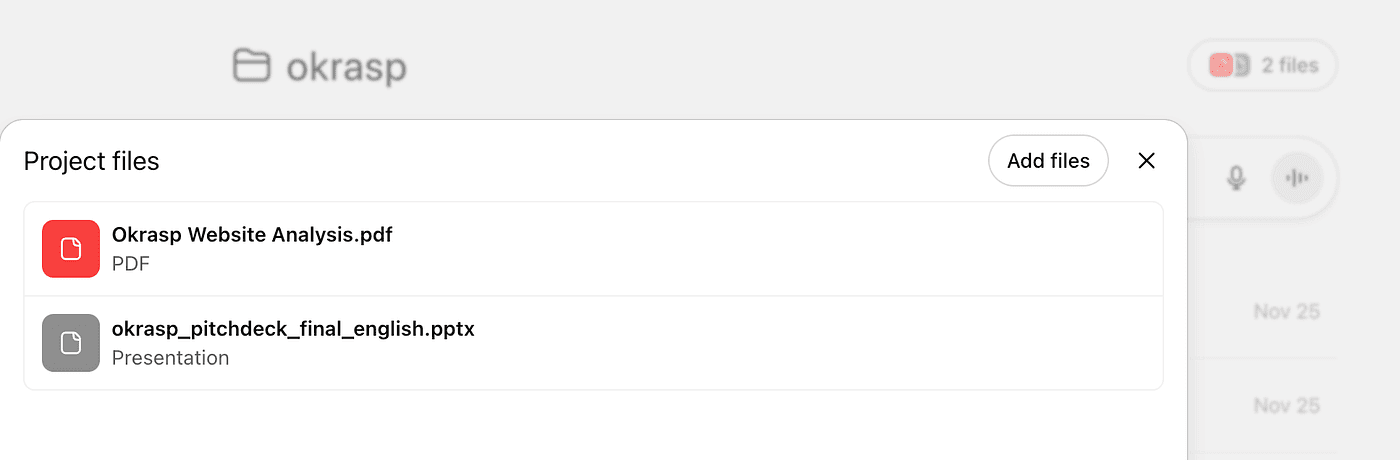
Inside that Project, I uploaded:
- A 17-page PPT
- A long in-depth research report
- Additional product notes
Then I use Canvas + tools to build something like:
“Create a product tutorial for my OKRASP product course.”
ChatGPT reads everything in the knowledge base and generates a detailed tutorial.
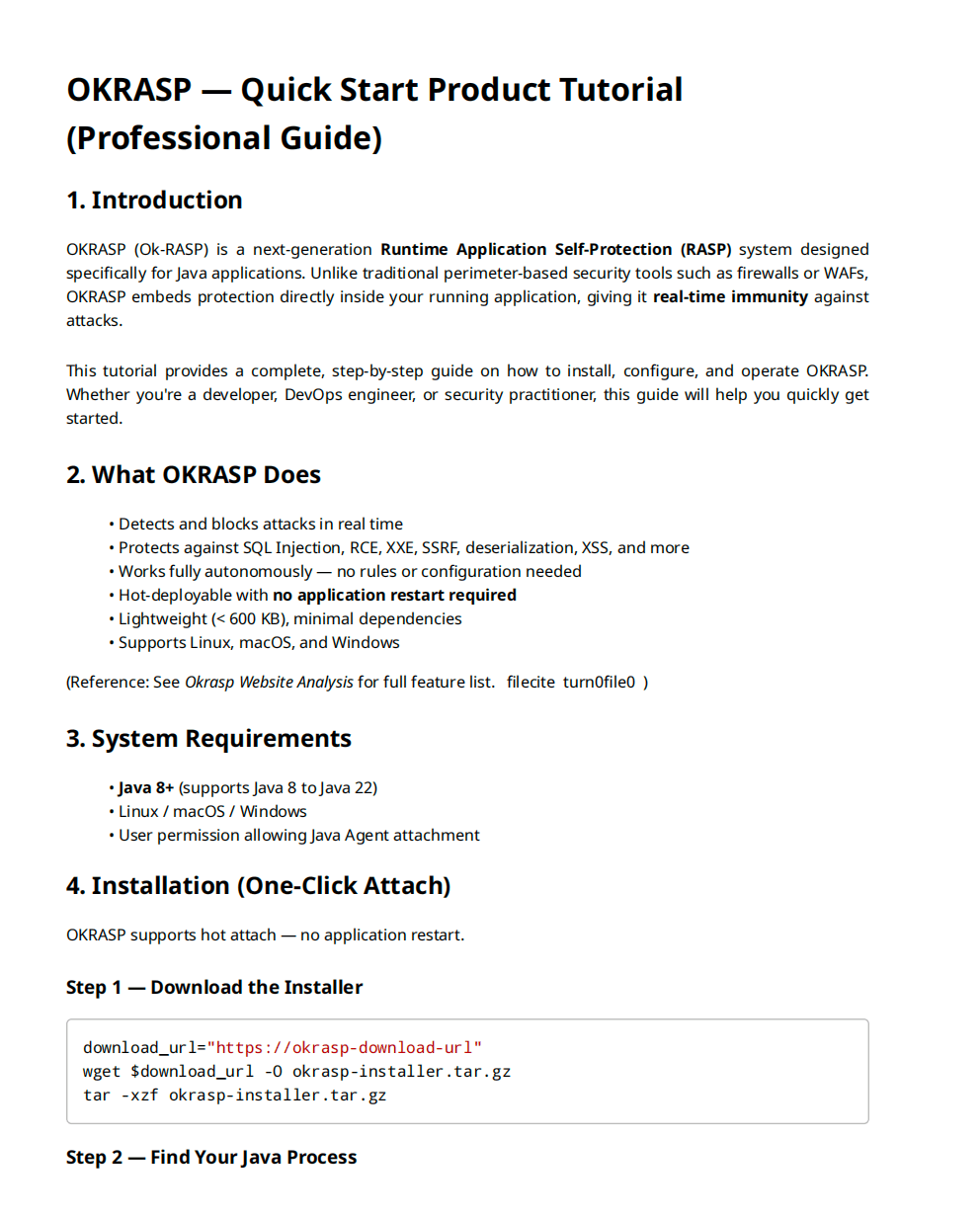
I didn’t write anything from scratch.
It all came from the documents inside the Project.
Generating a Thumbnail Inside the Project
Since the Project understands the context, I can continue:
“I want to create a thumbnail. Clean background, large title, short line of text.”

It generates several thumbnails.
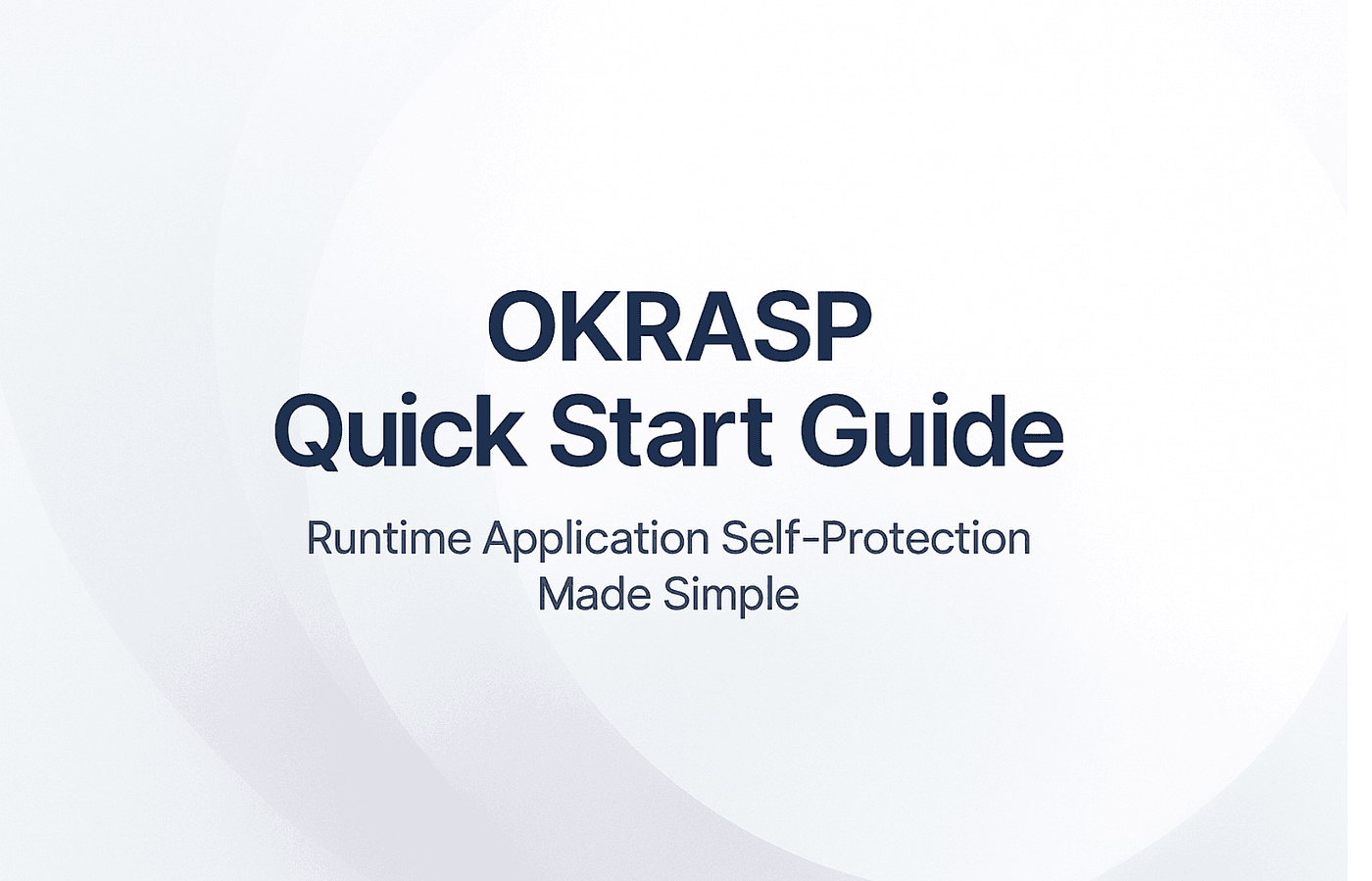
Most of the time, the images give me enough direction.
I can refine them or import into Canva for polishing.
Why Projects Matter So Much
When you combine:
- Custom instructions
- Project-only memory
- Knowledge base documents
- Deep Research
- Images
- Web search
- Canvas
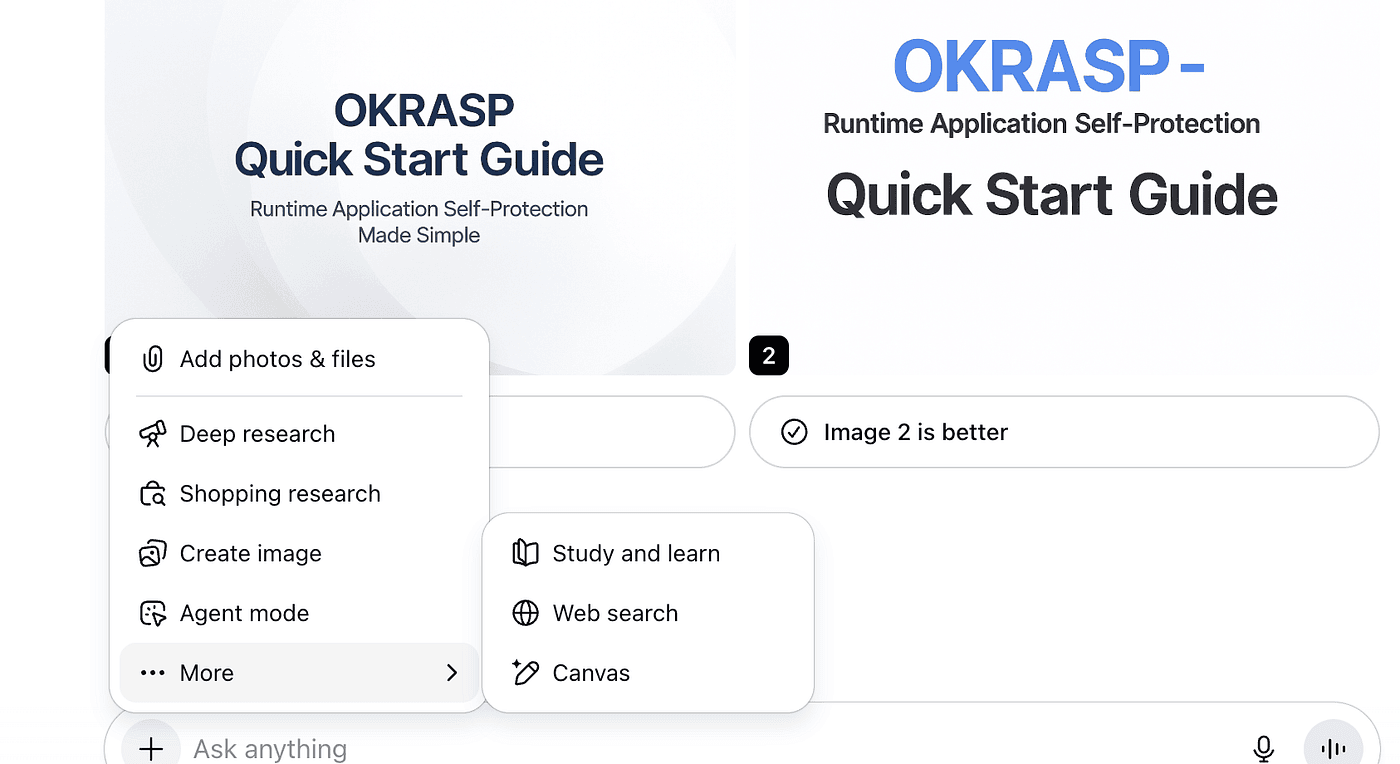
You essentially create a personal, evolving AI workspace for any long-term project.
Writing.
Research.
Product development.
Marketing.
Learning.
Even coding.
Most ChatGPT users never touch this feature.
But once you use it properly, it becomes the most productive part of your entire workflow.
Final
I’ve been building, writing, coding, experimenting, and creating nonstop for years.
My brain is always full — ideas, tools, drafts, half-finished projects, tasks I want to return to.
Projects finally gave me a place to put everything in one place — clean, organized, powerful.
For the first time in years, I feel like my creative life has structure.
If you’ve been overwhelmed by your ideas,
or if you juggle too many things at once,
or if you keep starting but rarely finishing —
try building a Project.
One project for writing.
One for your startup.
One for your product.
One for your learning path.
One for your research.
Give it context.
Feed it materials.
Shape its behavior.
And watch it grow with you.
Most people think ChatGPT is just a chatbox.
But Projects?
They turn ChatGPT into your second brain — one that never forgets, always organizes, and helps you build the life you want to create.
This is the feature everyone is sleeping on.
But if you use it well, it might just be the thing that pushes your work — and your future — forward.