
A step-by-step workflow for building faceless YouTube automation with real data.
This article is worth reading more than once.
Today, I want to reveal a powerful automation method that completely changed how I see YouTube automation.
With one simple tool, you can clone almost any YouTube channel you want.
And yes — this genuinely shifts how most people think about content creation.
Google has quietly released a tool that disrupts YouTube automation entirely.
It’s a hidden AI system that can generate full explainer-style videos with just one click.
This is not just another video generator.
It’s a complete content factory — capable of producing 30+ videos in under an hour.
Today, I’ll show you step by step how to set up this system and how to use it to create videos in minutes instead of hours.
Let’s get started.
Step 1: Analyze a Channel Worth Cloning
First, take a look at this channel.
This is the channel we’re going to clone today.

Why this one?
- Only 8 long-form videos
- First video posted two months ago
- $600/month in revenue
- Just 2.1K subscribers

Now look at another similar channel.
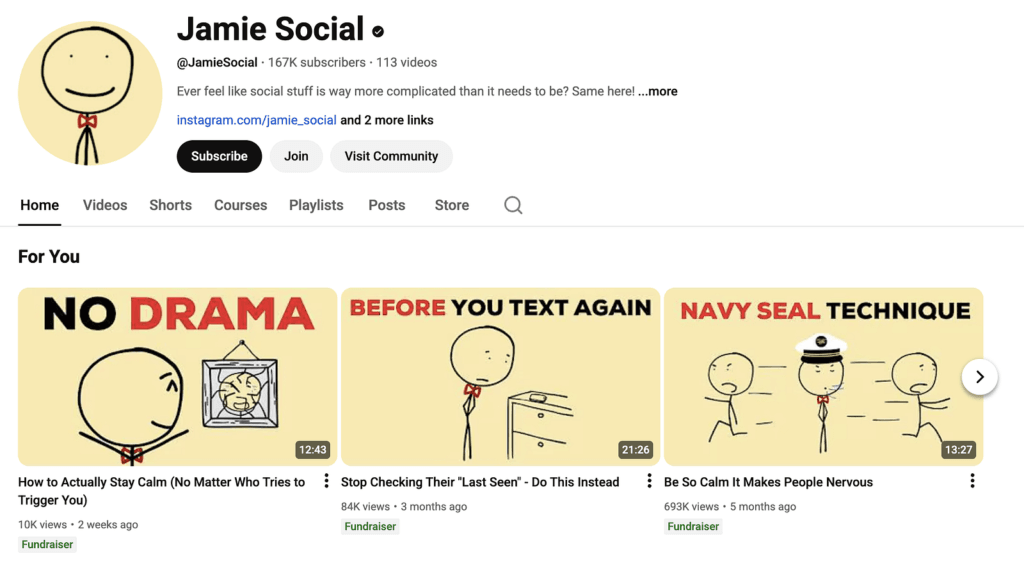
This one is making $7,000 per month.
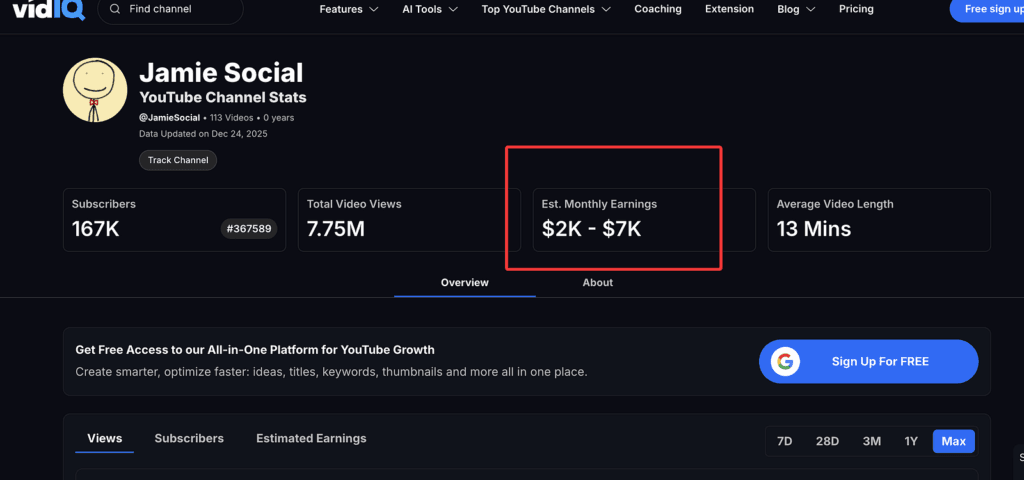
What does this tell us?
It tells us that this niche is wide open and already proven.
For this tutorial, I’ll clone a channel called @ Jamie Social using only free Google tools.

When we analyze this channel, we notice something important:
- AI voiceover
- Simple stick-figure slideshow visuals
- No real face
- No complicated animation
Perfect for automation.
Step 2: The Tool That Makes This Possible
The tool we’ll use is Google Notebook LM.
If you’ve ever tried running a faceless or automated channel, you know the hardest part isn’t editing or visuals.
It’s knowing what to say.
Notebook LM solves this problem.
It can reverse-engineer any YouTube channel:
- Ideas
- Scripts
- Structure
- Hooks
- Tone
And it’s completely free.
Step 3: Create a New Notebook
Open Notebook LM and click Create New.
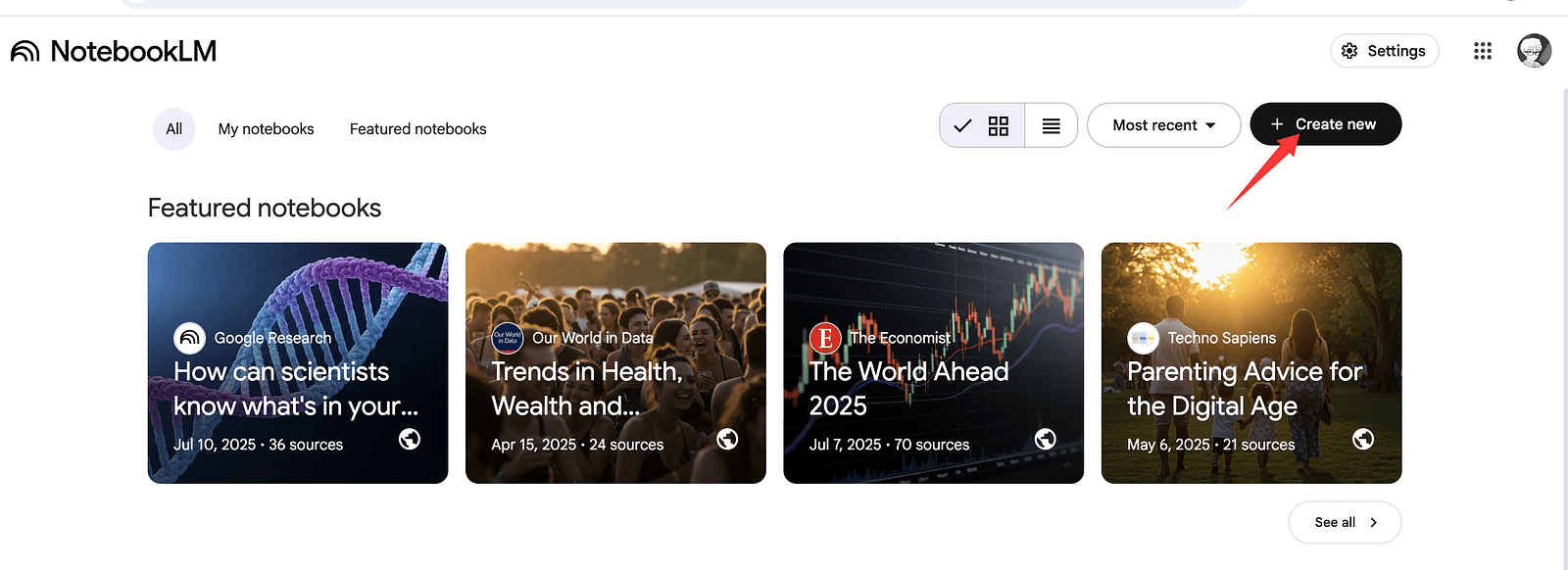
While it opens, go to the YouTube channel you want to clone.
You’ll need 10–15 video links from that channel.
Copying them one by one is painful — so we automate this too.
Step 4: Automatically Grab All Video Links
This year, I’ve been obsessed with automation, so I found a simple solution.
We’ll use a Chrome extension.
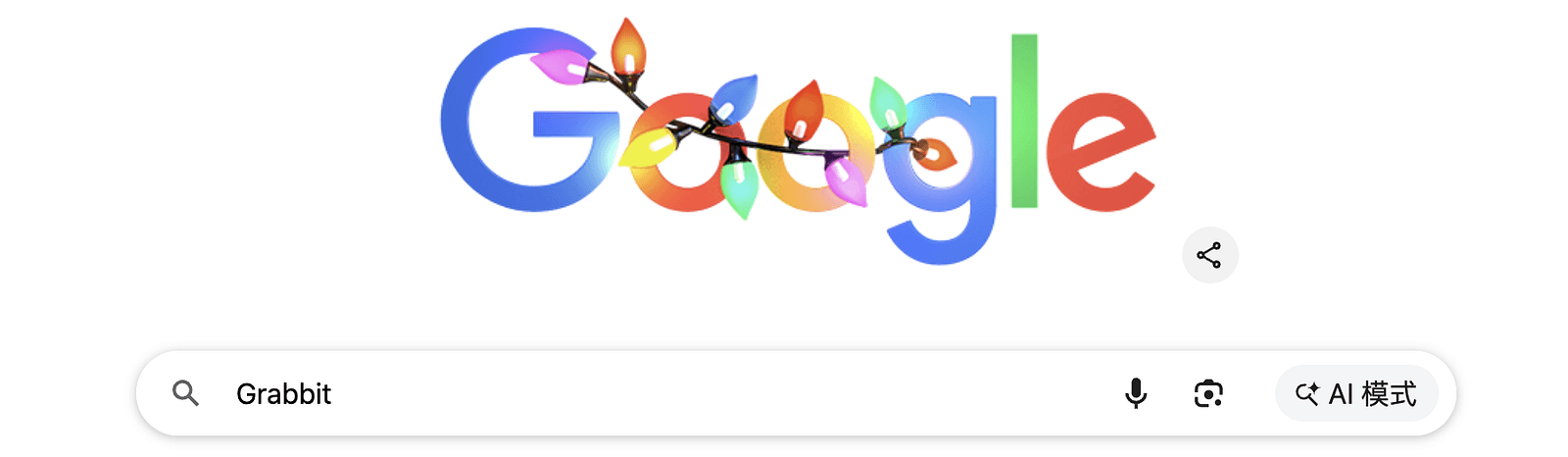
Go to Google and search for Grabbit.
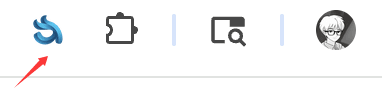
Add it to Chrome and pin it.
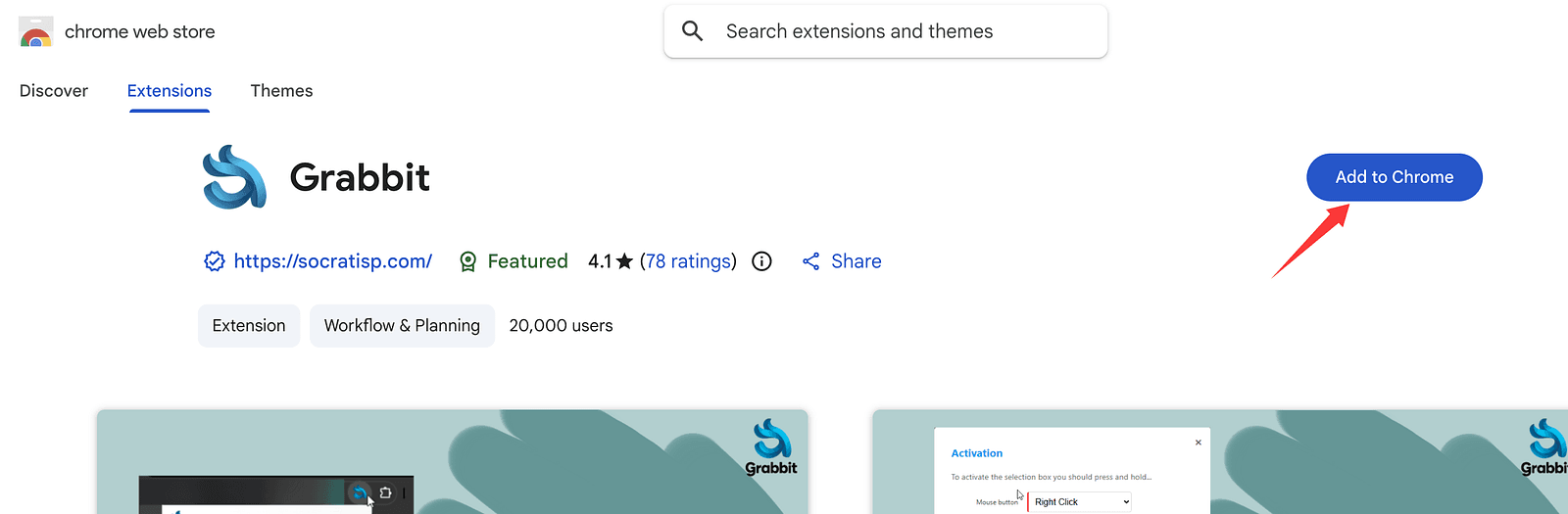
This extension lets you copy all video URLs at once.

Configure Grabbit
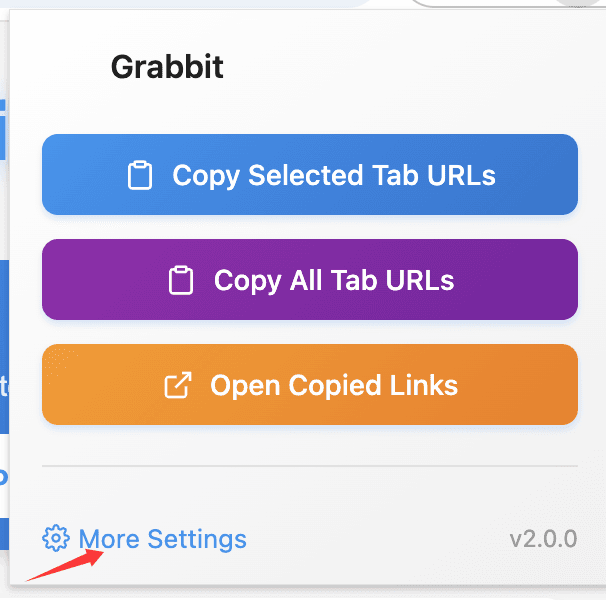
- Click the extension
2. Go to More Settings
3. Scroll down
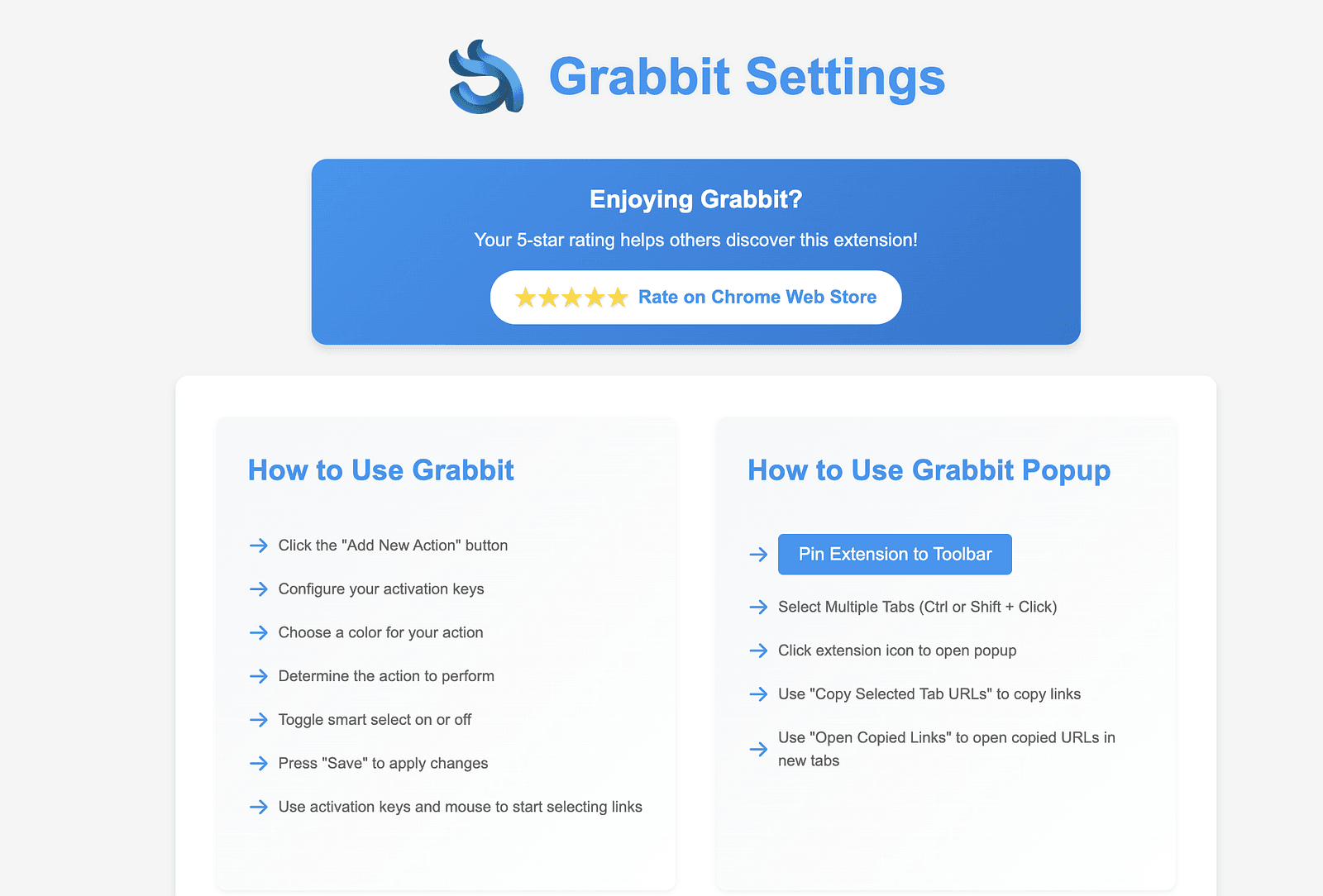
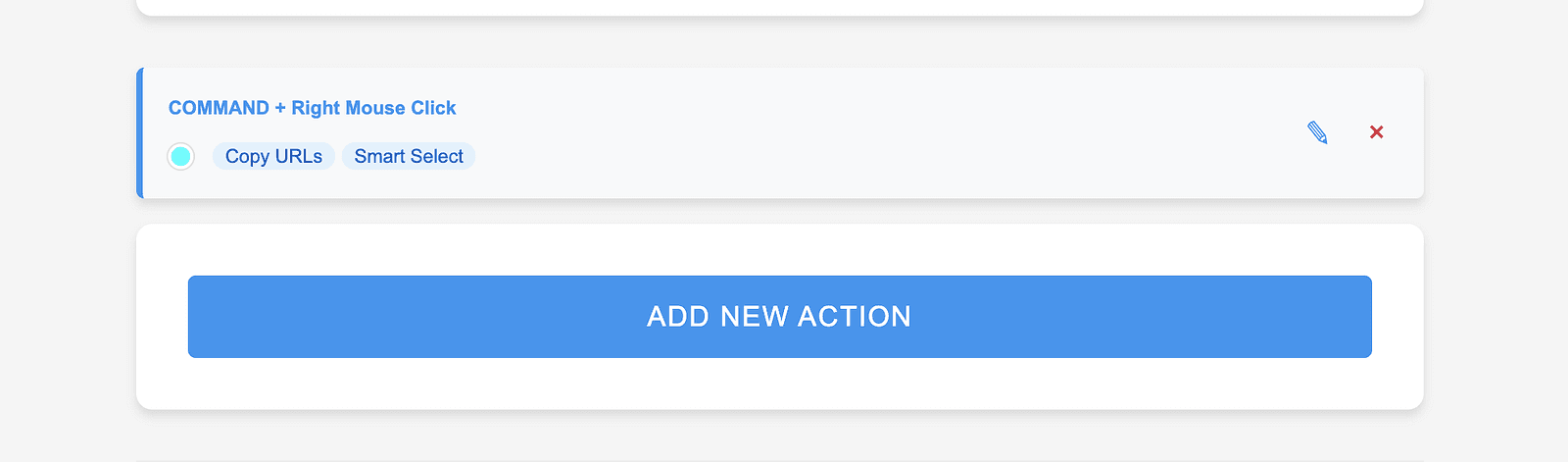
→ Add New Action
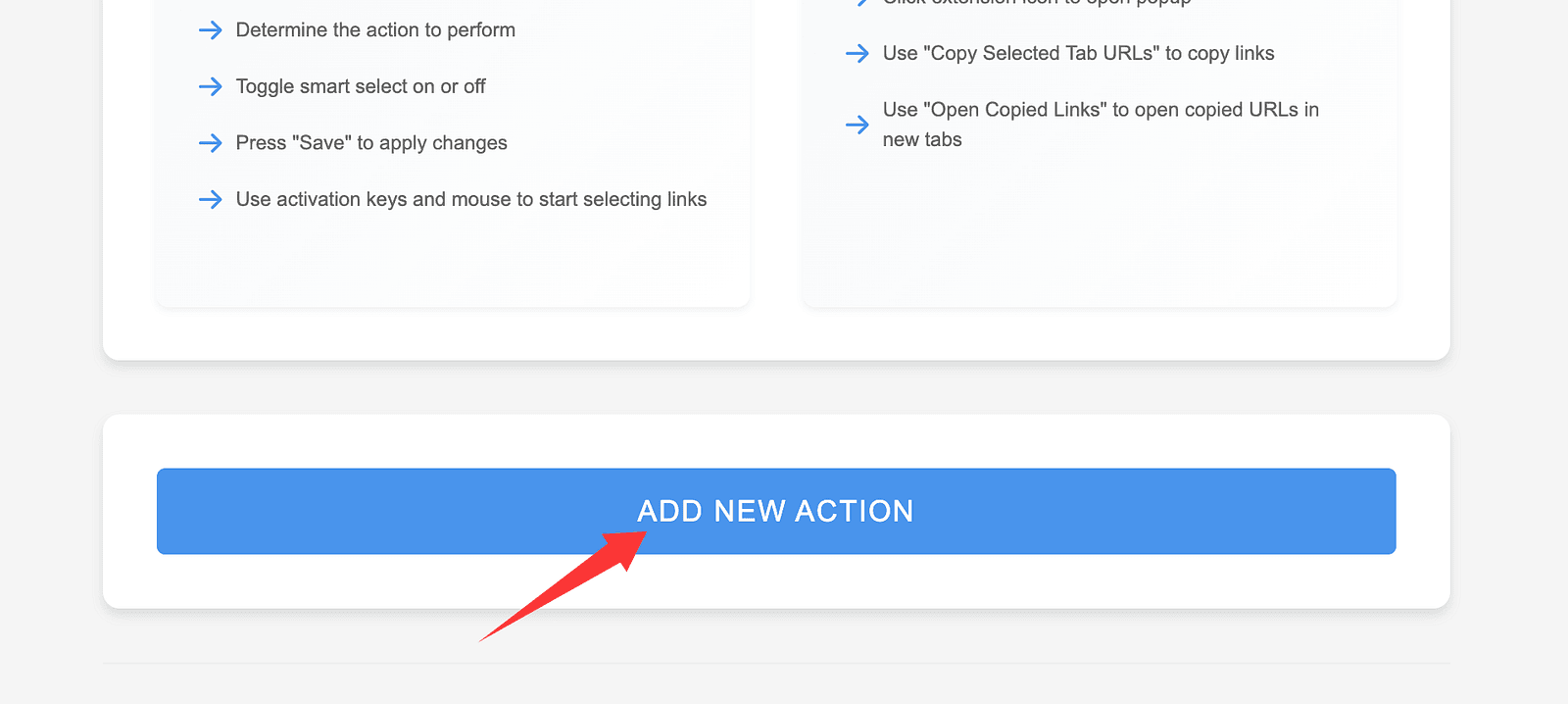
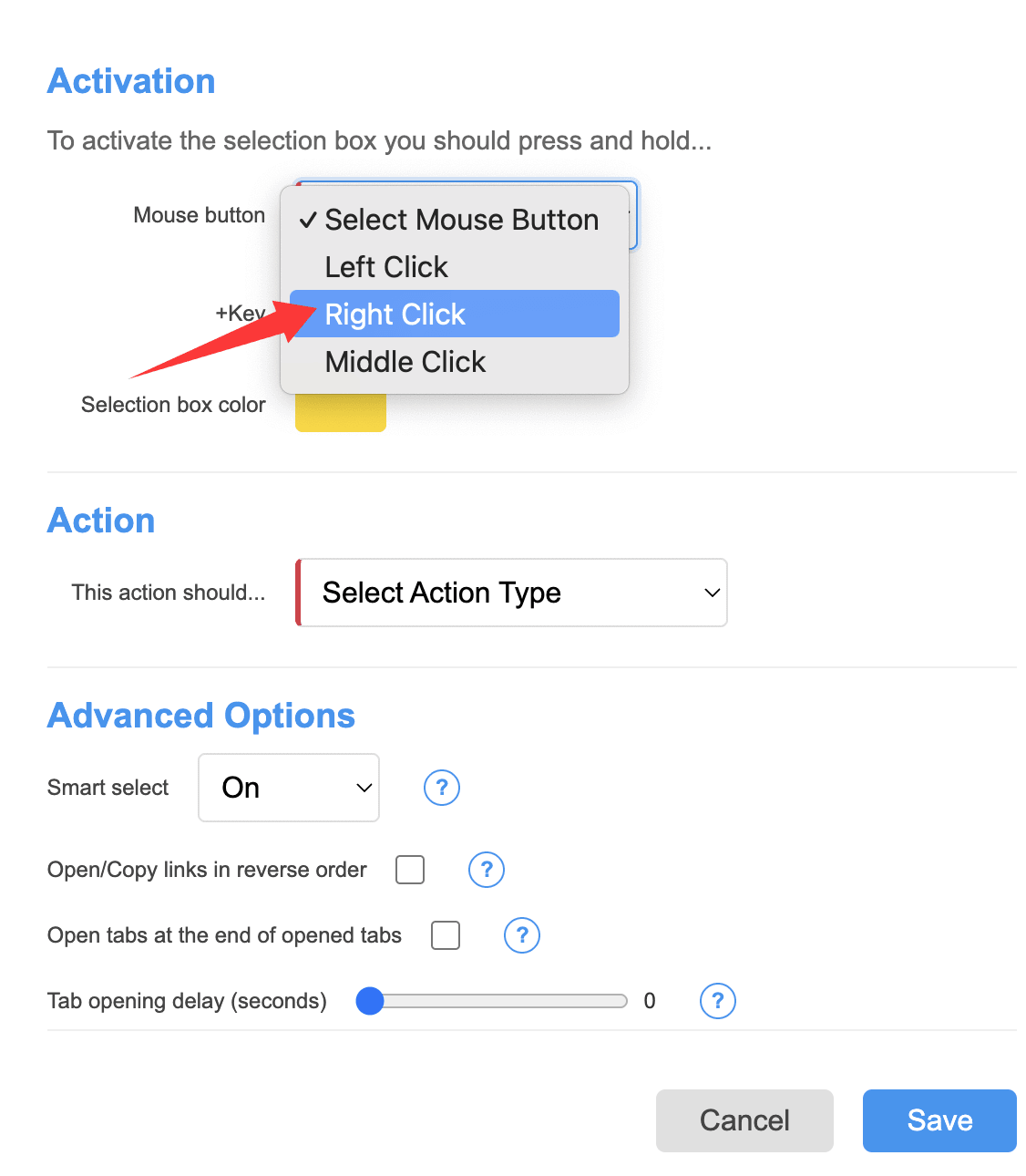
4. Set:
- Mouse Button: Right Click
- Action : choose Copy URLs to clipboard
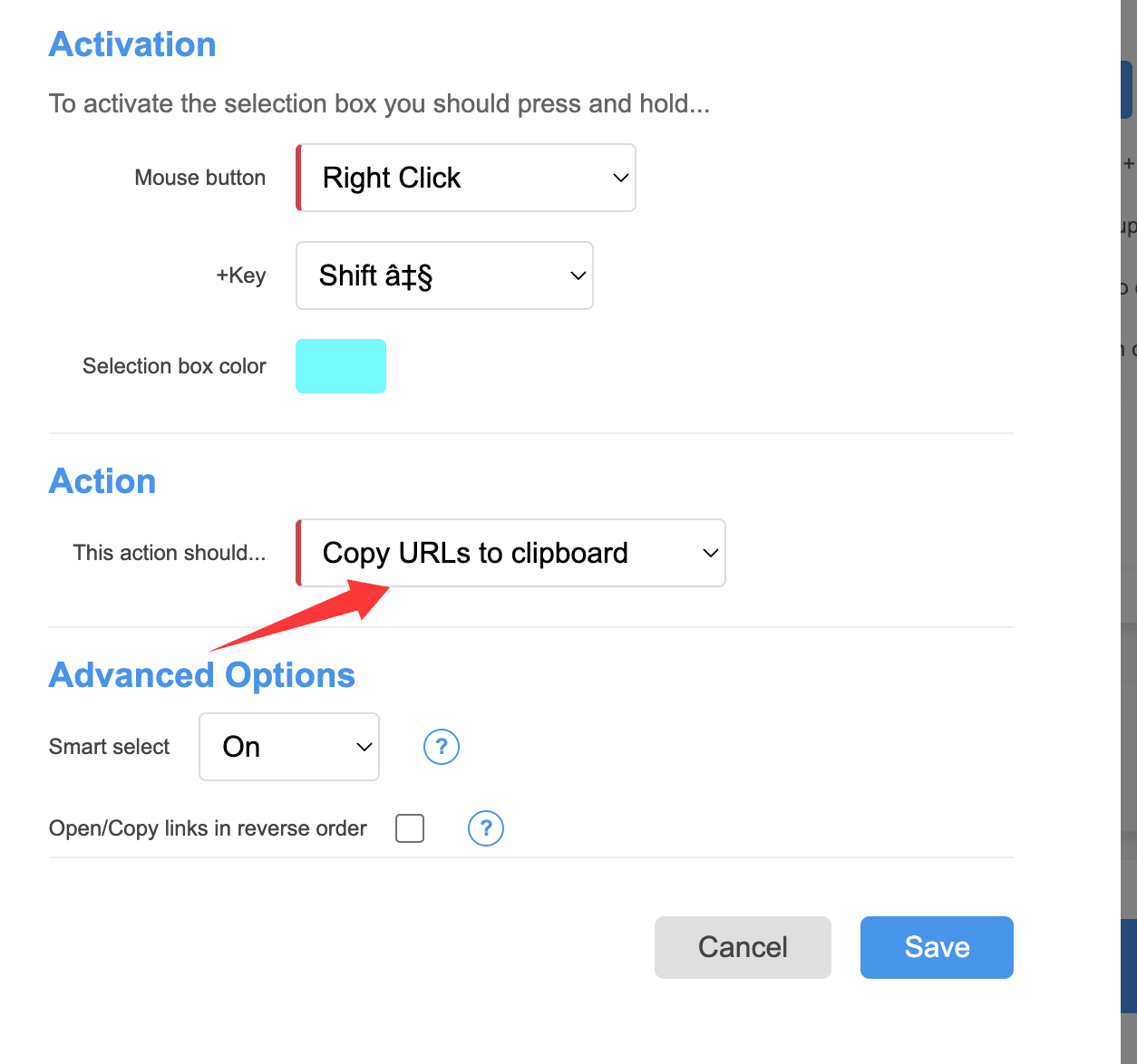
5. Save
Now your action is ready.
Step 5: Collect the Video URLs
Go back to the channel you want to clone.
- Scroll until all videos load
- Hold Control and click to copy all URLs
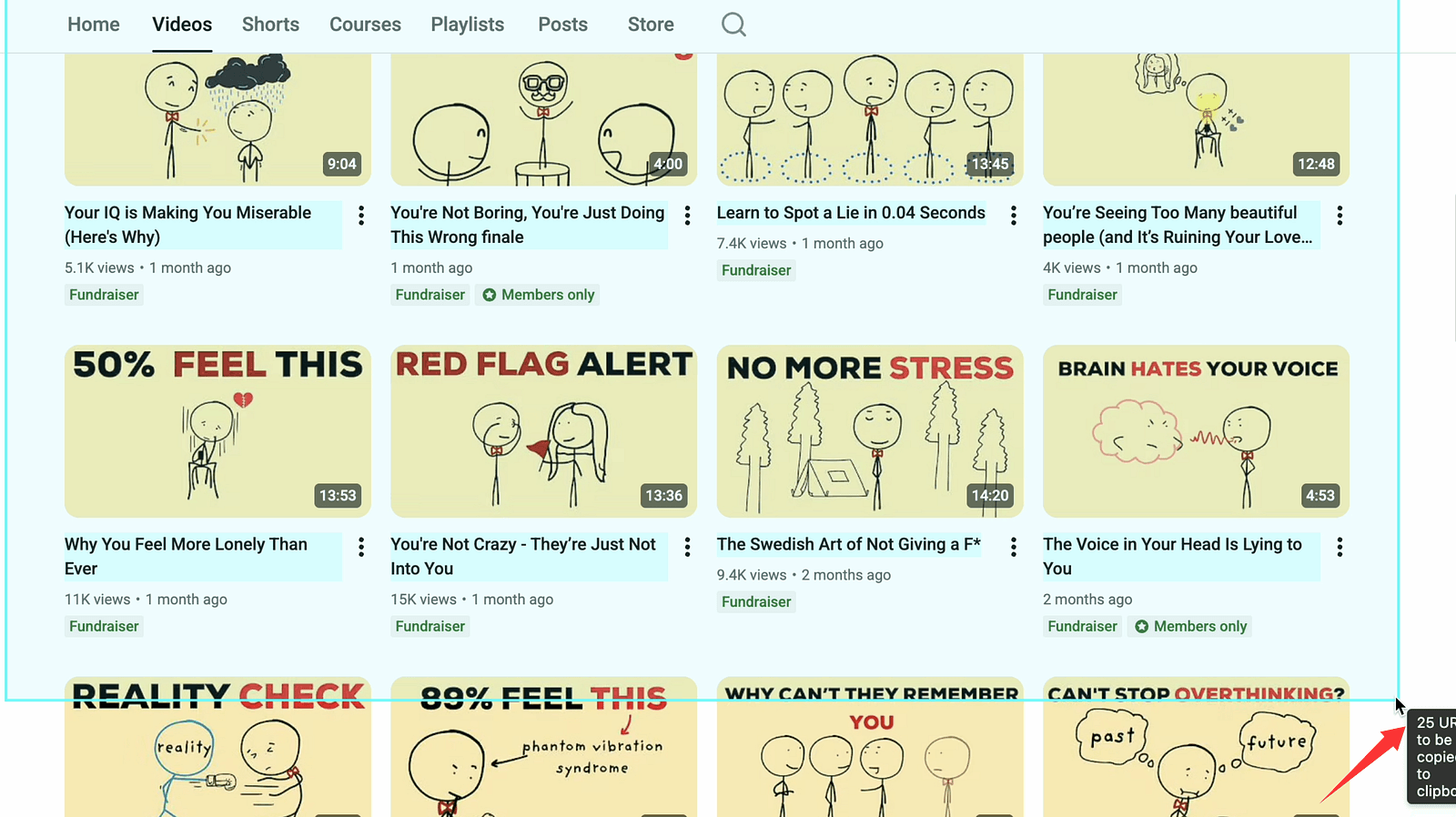
Now open Notebook LM again.
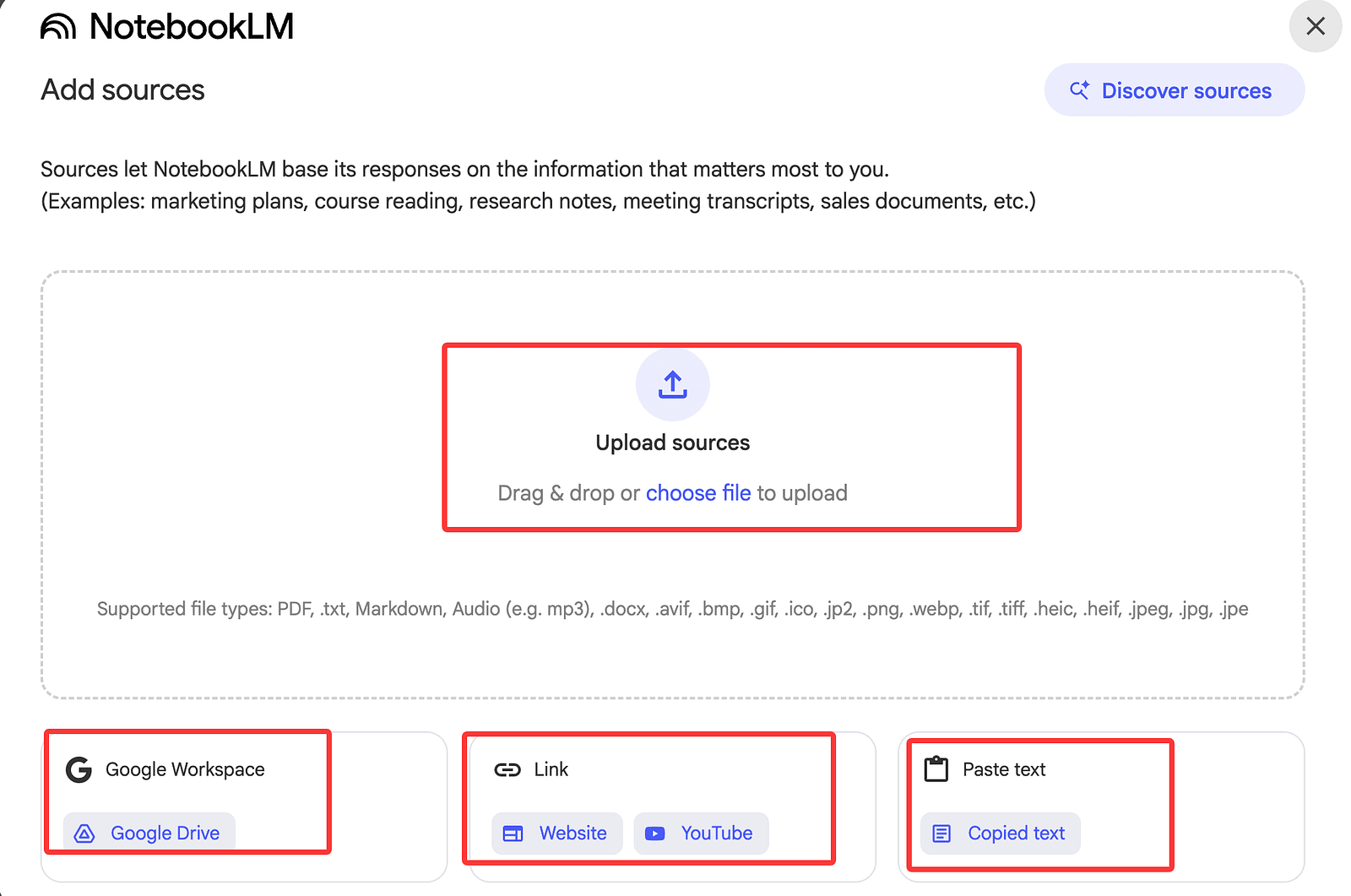
Click Add Sources
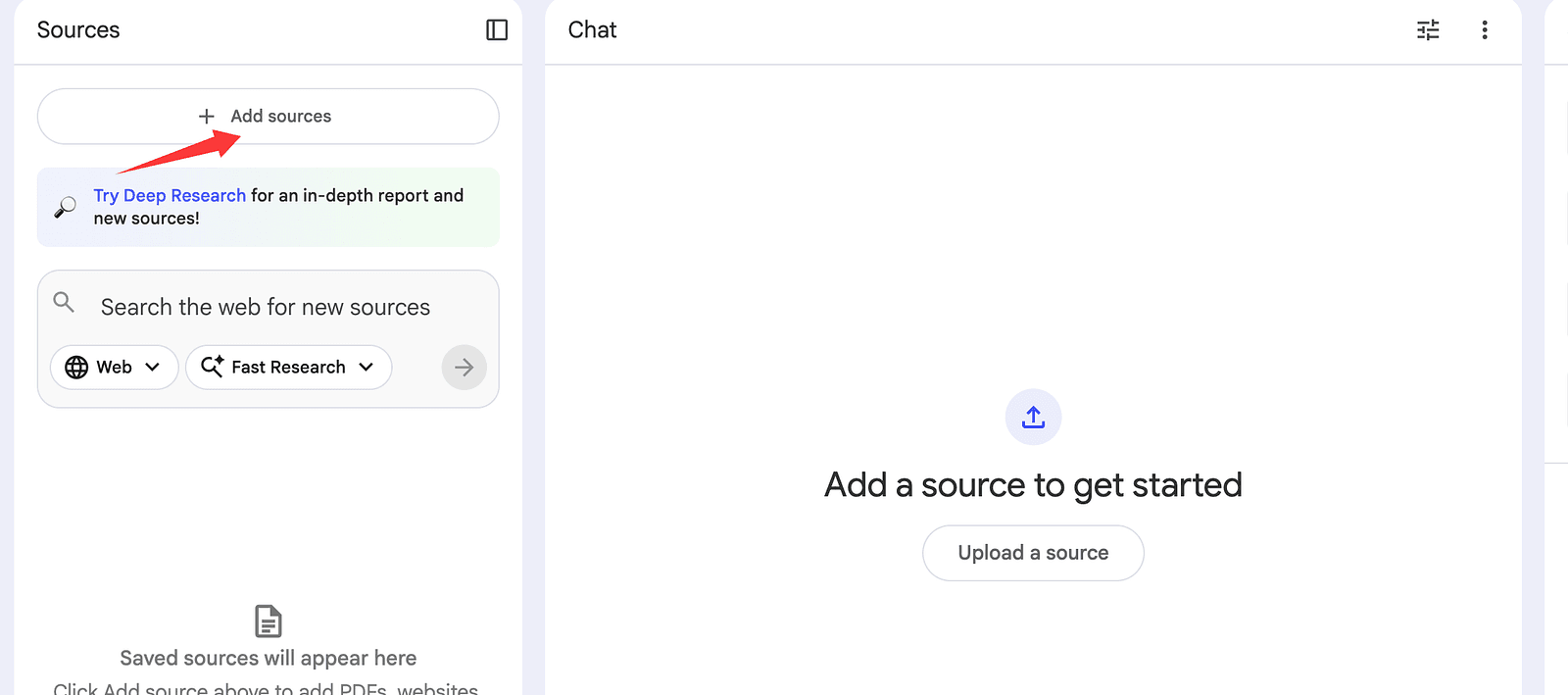
→ choose Website
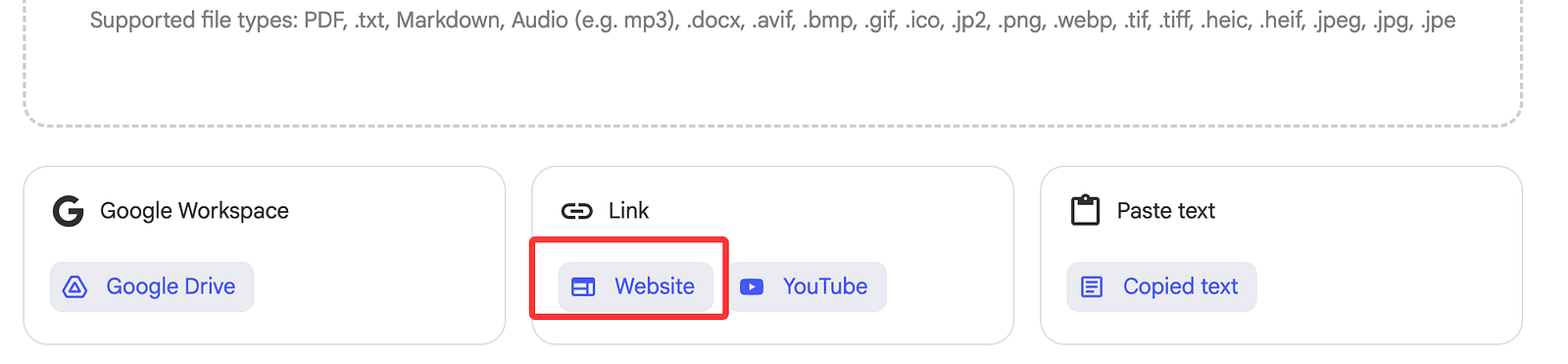
Paste the YouTube links.
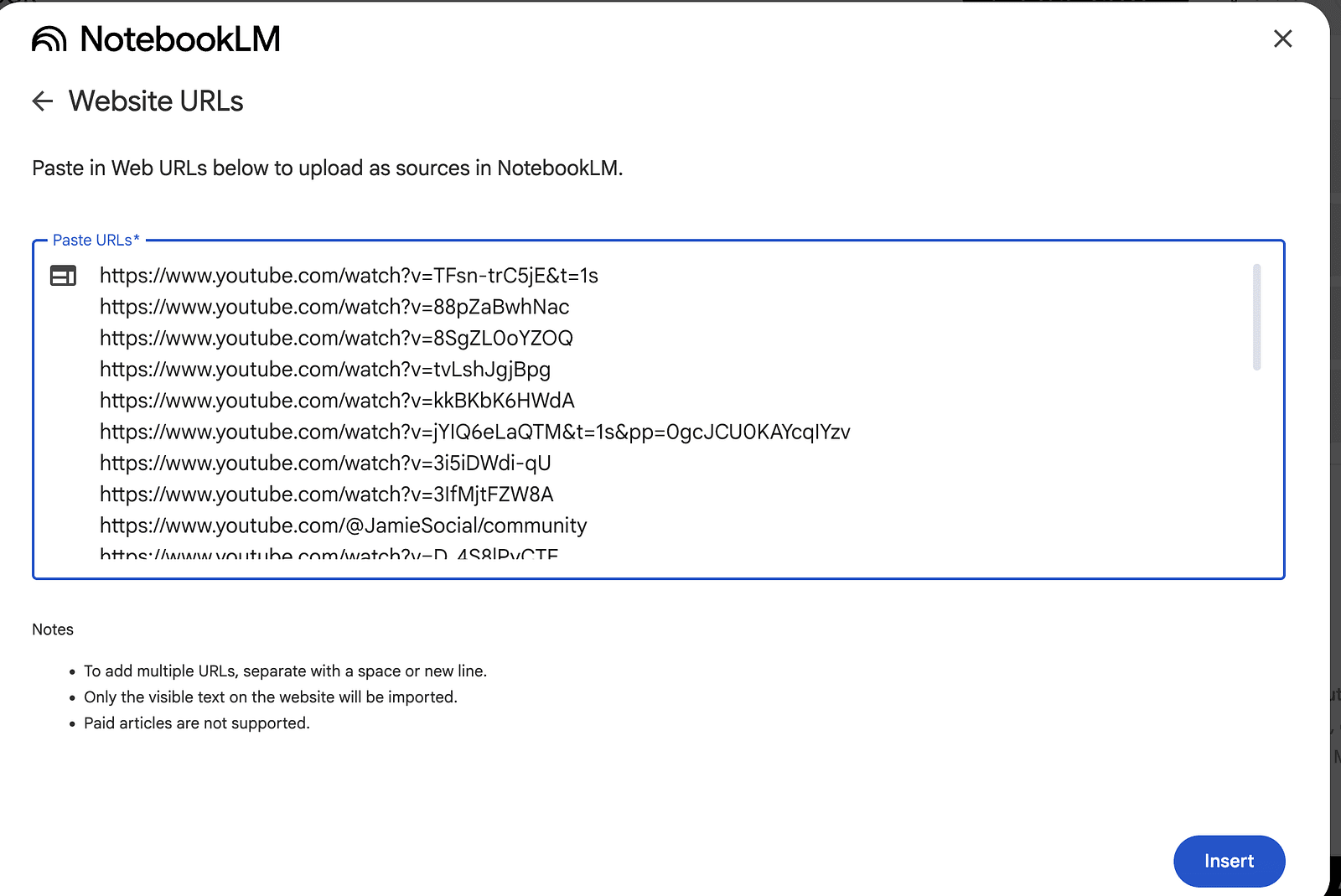
Wait for all sources to finish loading.
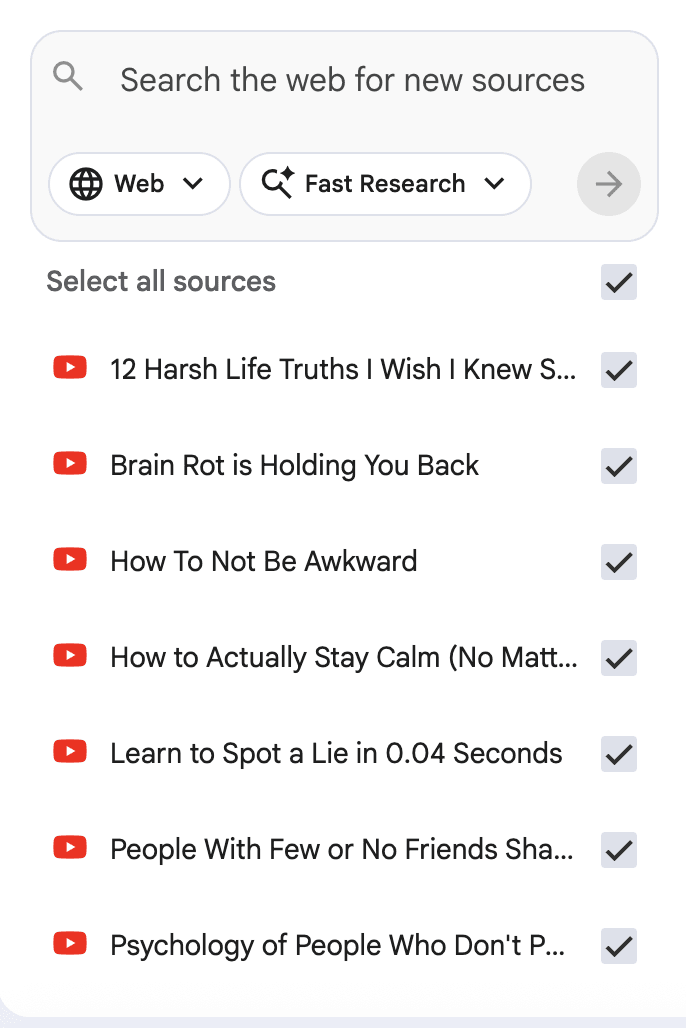
You can also add:
- Blog posts
- Text files
- PDFs
The more high-quality sources you add, the better the results.
Why This Matters for Monetization
YouTube actively penalizes 100% AI-generated content.
If you use:
- AI scripts
- AI voices
- AI visuals
…you risk warnings and monetization issues.
Notebook LM is different.
It generates content based on real sources you provide, which makes it far safer to use.
Step 6: Define Your Channel
Give your notebook a clear title.
In my case, I’m cloning a psychology-focused channel.
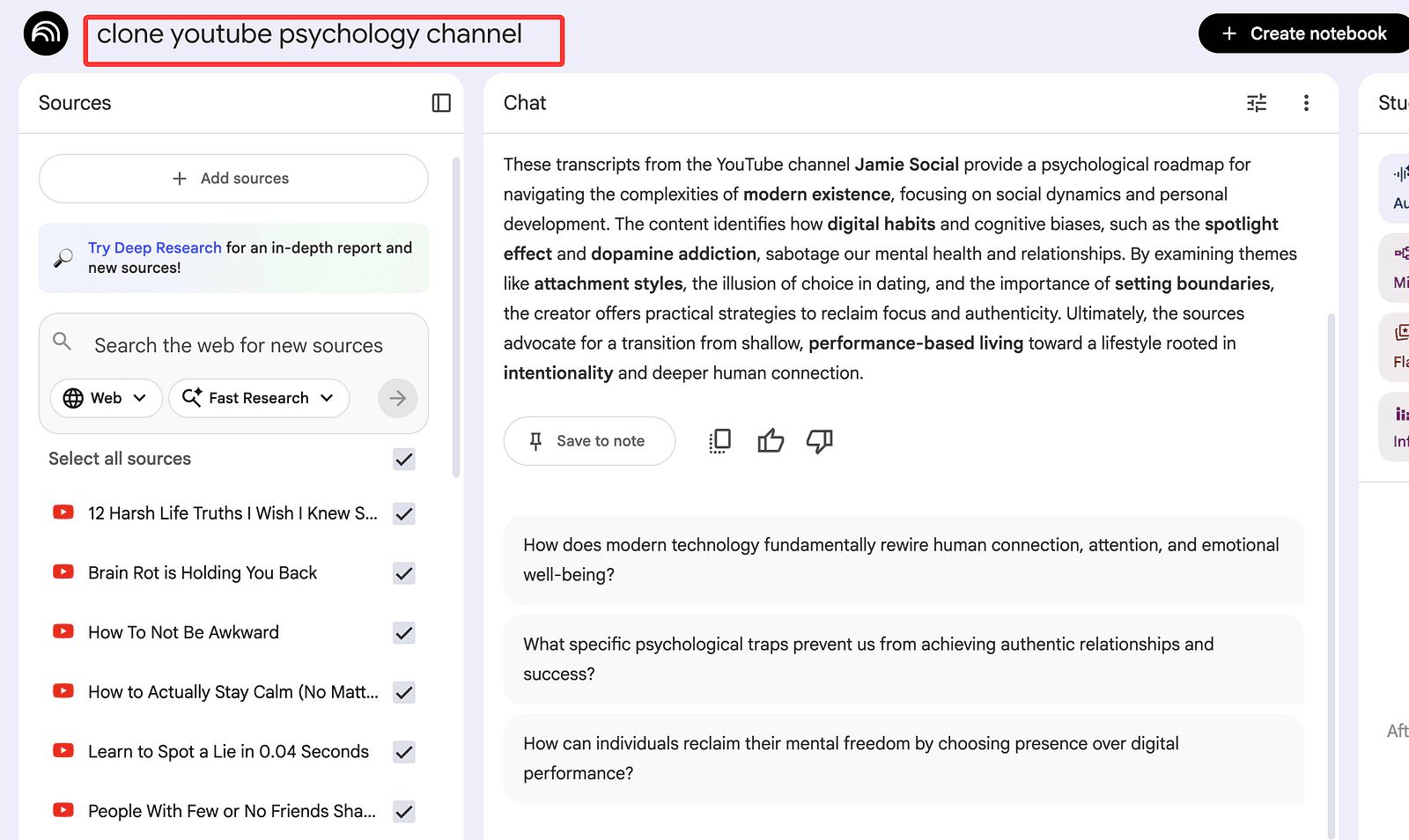
Now go to the chat panel and use this prompt:
I want to clone a channel like this.
Go through these sources and understand the niche, script, title, and tone format.
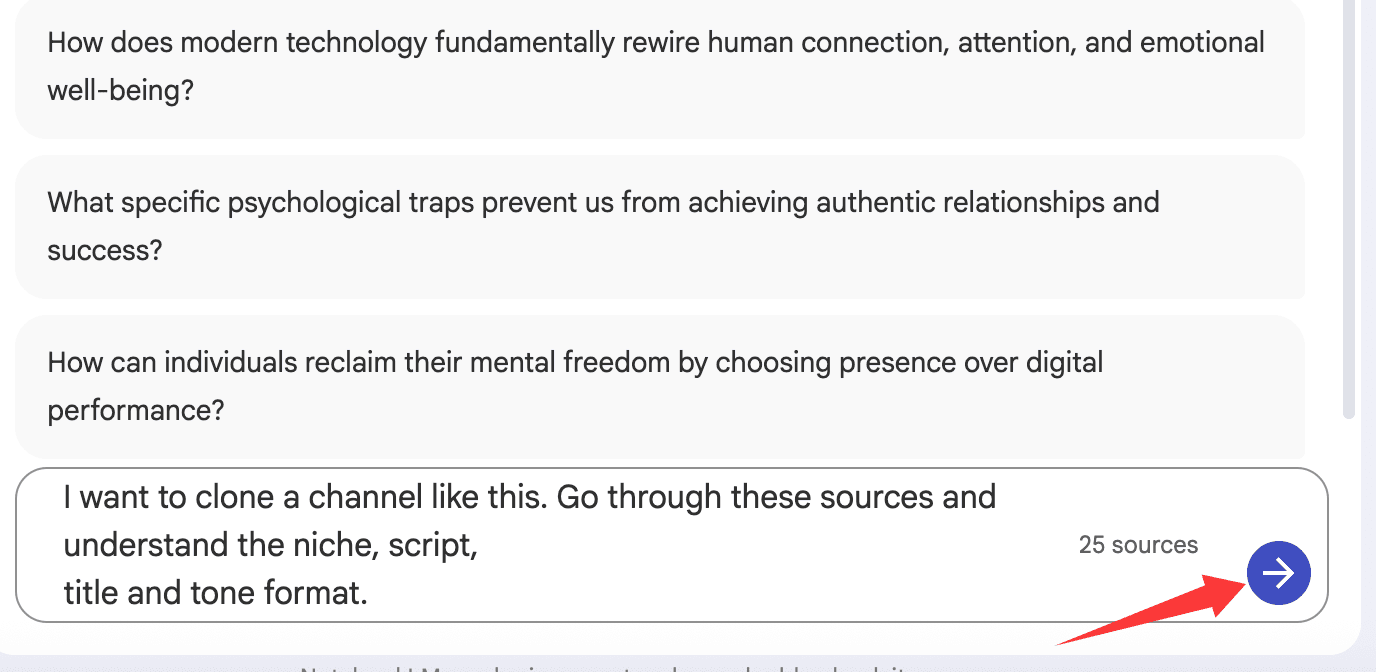
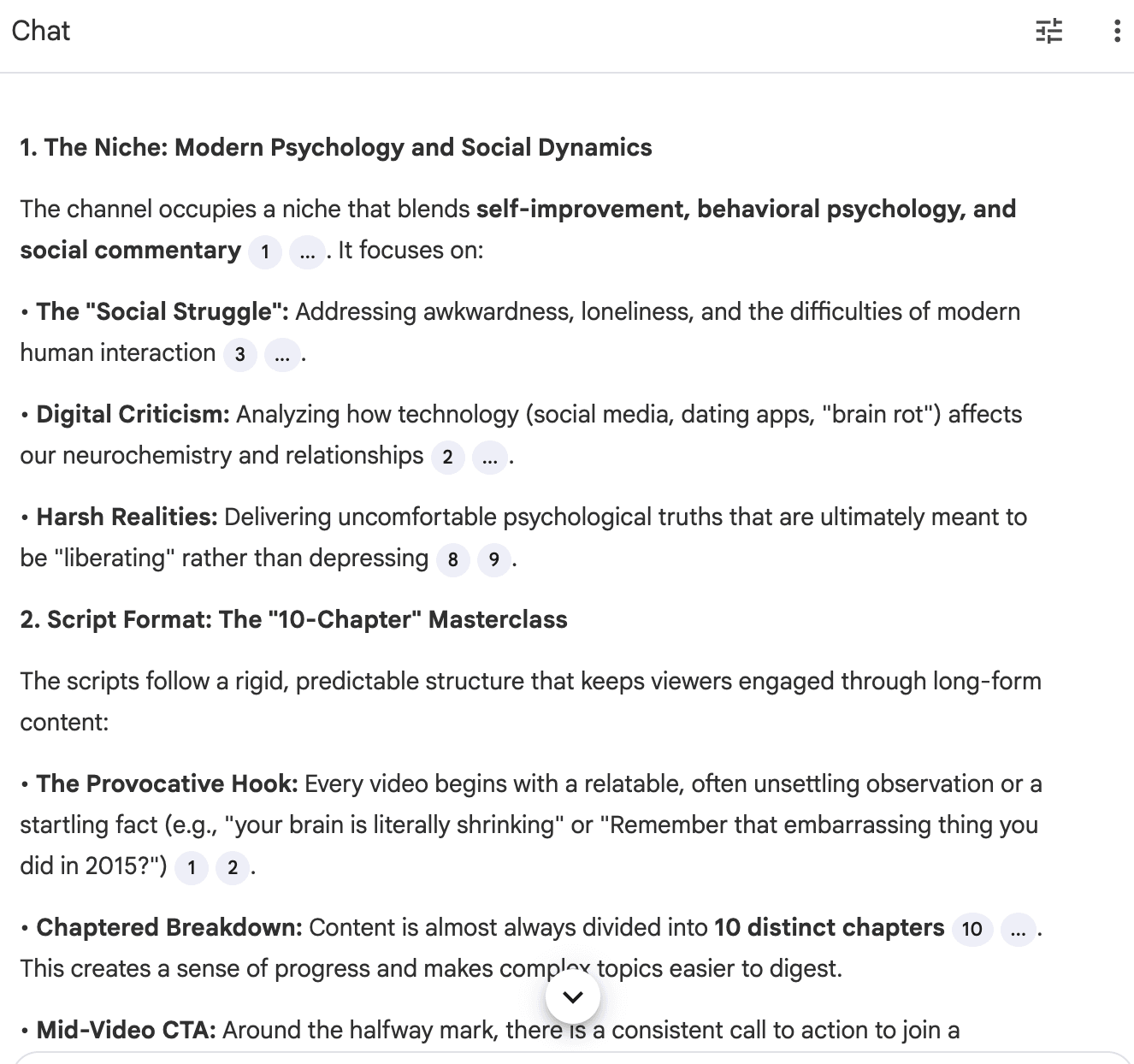
Notebook LM will now give you:
- Topic patterns
- Script structure
- Hooks
- Calls to action

Step 7: Generate a Channel Name
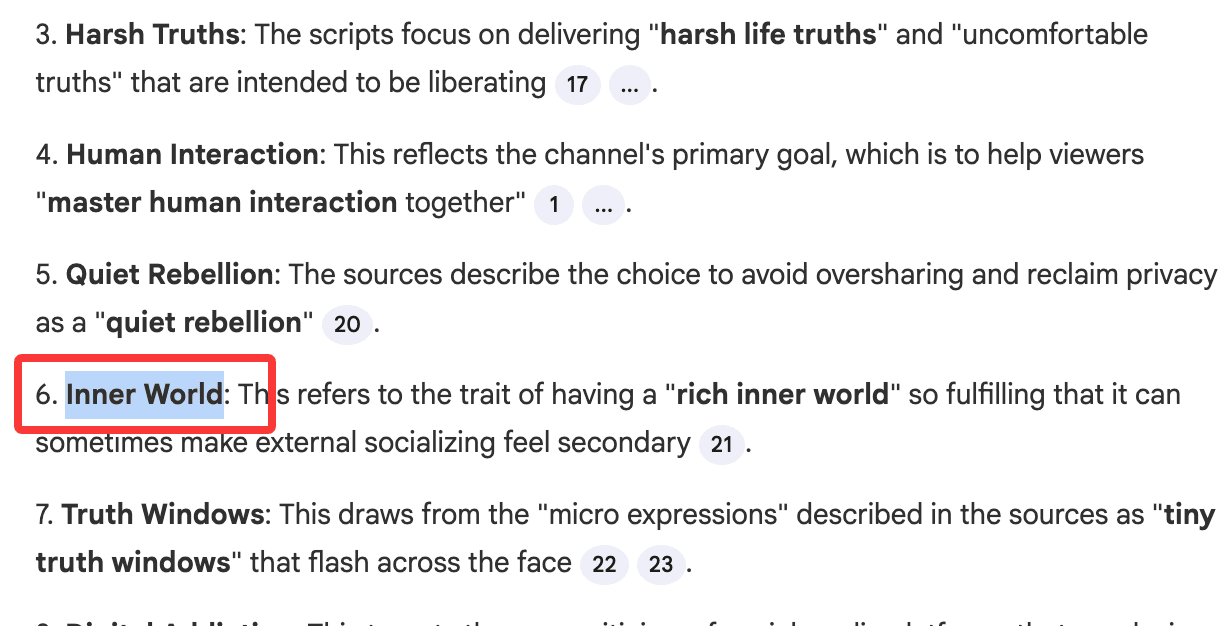
Next, ask for channel name ideas.
Give me 2-word, 10 channel name ideas for a channel like this.

Choose the one you like and continue the same conversation.
I chose: Inner World
Step 8: Generate Video Ideas (This Is Huge)
Now ask Notebook LM to generate content ideas.
Generate 10 video ideas for this channel.
NON-NEGOTIABLE FORMAT (MUST FOLLOW):
- Every video is a stick-figure animated explainer.
- Visuals must use ONLY simple 2D stick figures (circle head + line body/limbs).
- No realistic people, no AI avatars, no 3D, no anime/cartoon characters.
For EACH idea, include:
1) Title
2) Hook
3) Stick-figure execution plan (6–10 scenes)
4) On-screen text
5) Voiceover outline
If it cannot be done with stick figures alone, discard it.
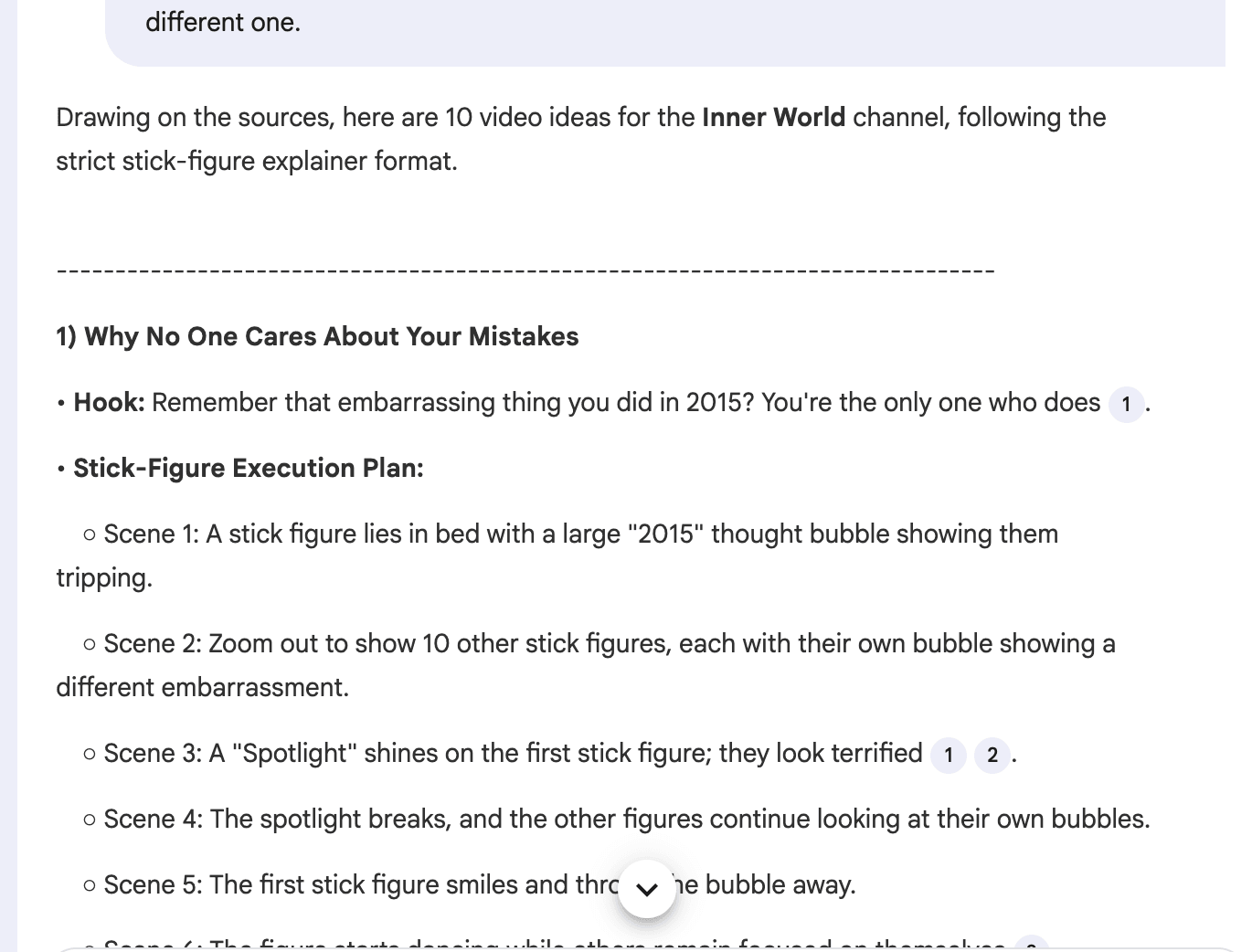
Notebook LM will now generate high-quality, viral-ready ideas.
This replaces hours of brainstorming.
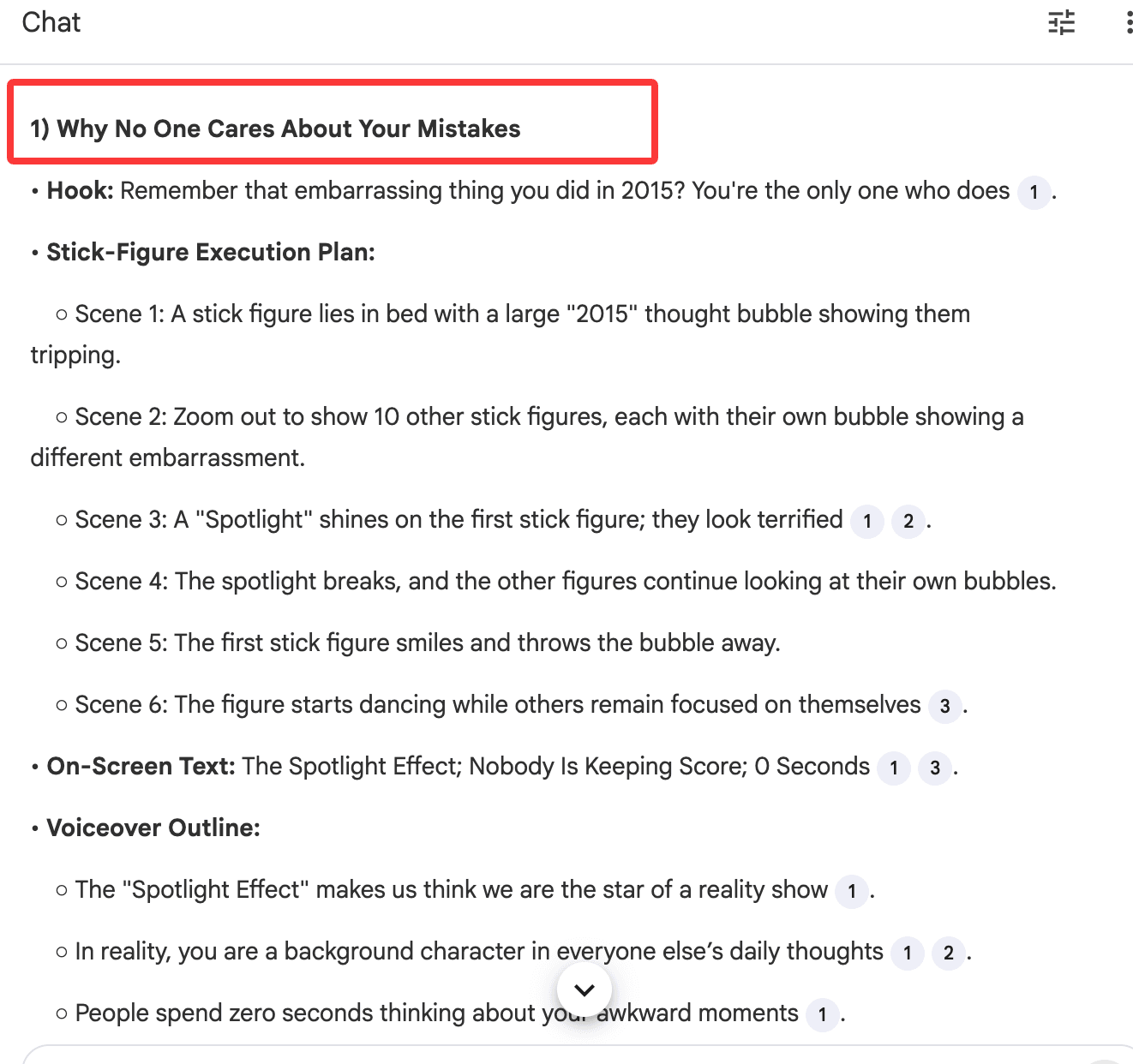

Step 9: Generate the Actual Videos
Now comes the magic.
Copy one idea and create a new notebook for it.
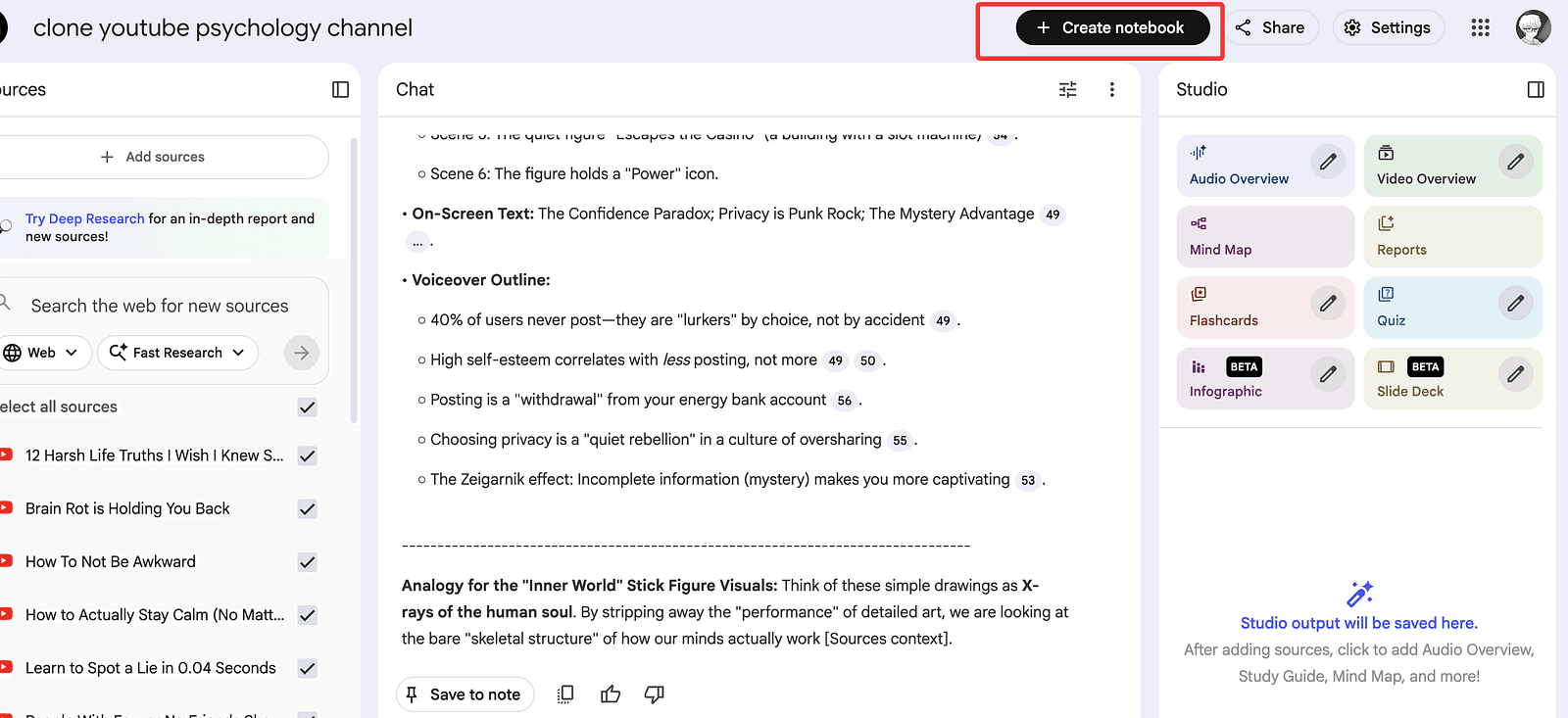
Add the idea as a source.

Now add the idea you copied earlier. Click “insert”.
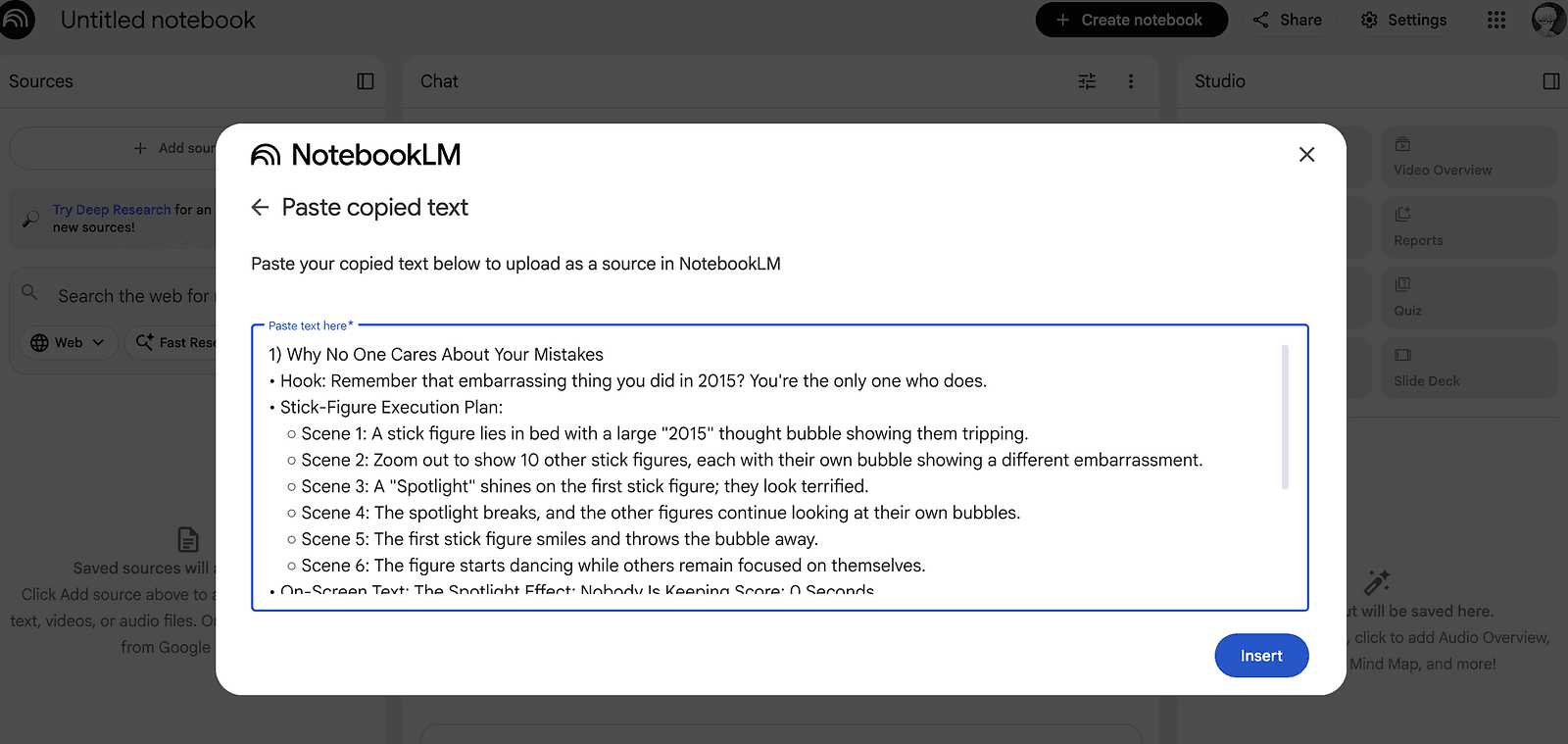
On the right sidebar, click Video Overview.
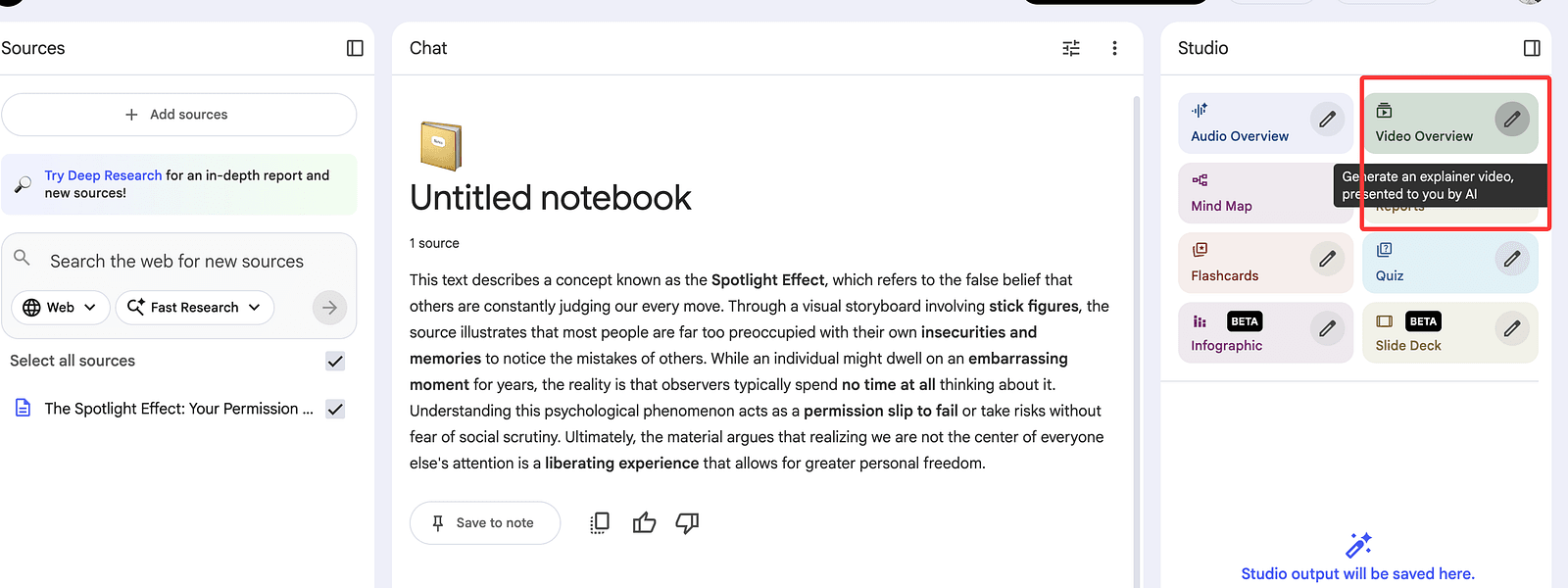
- Choose your video type, Select Whiteboard
- Click Generate
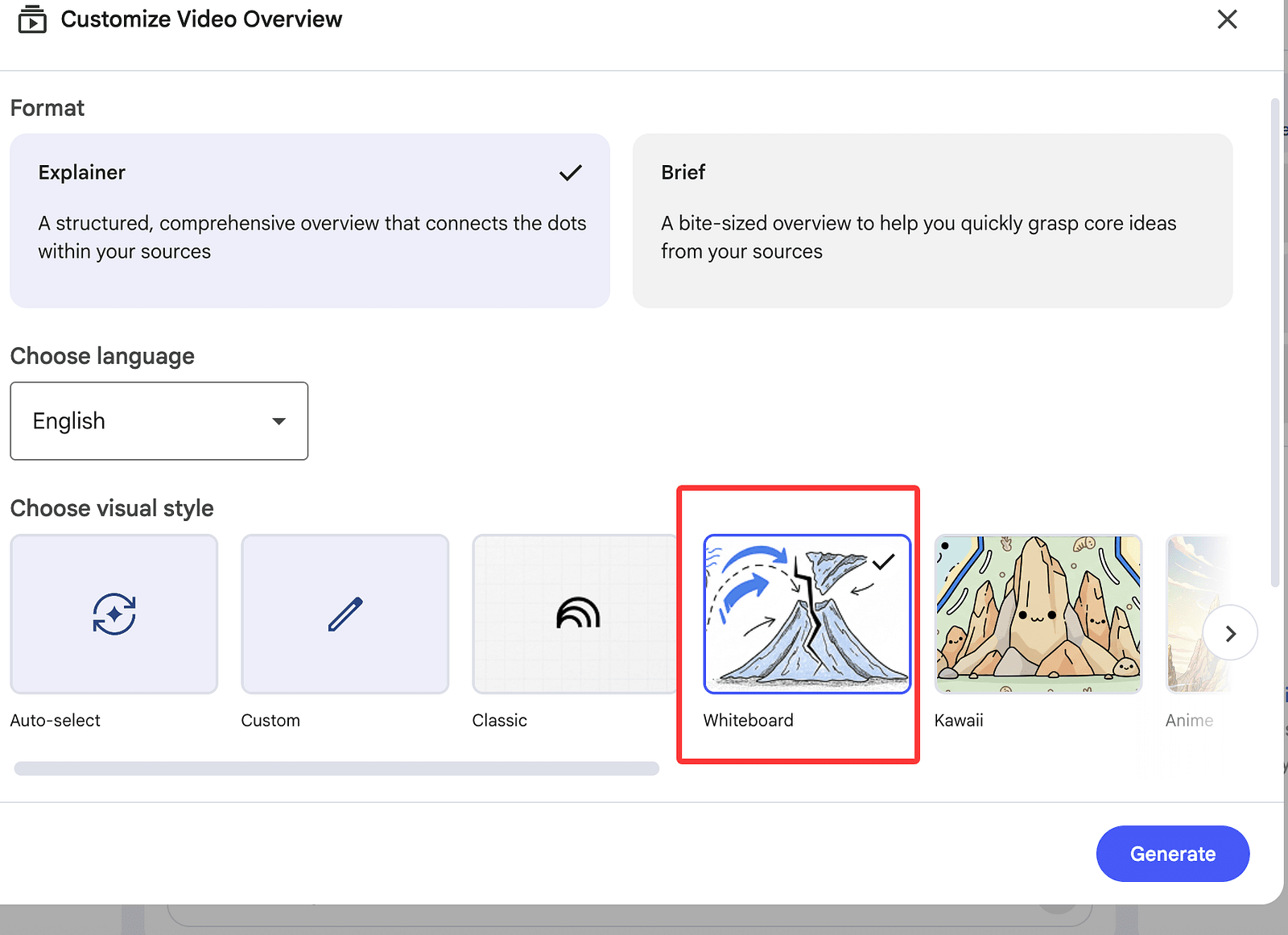
While the first video is generating, repeat the process for the next idea.
Your Phone is Physically Shrinking Your Brain
• Hook: "Brain Rot" isn't a joke—excessive screen time is causing actual, measurable cognitive decline.
• Stick-Figure Execution Plan:
    ◦ Scene 1: A stick figure is hunched over a glowing rectangle (phone).
    ◦ Scene 2: An "X-ray" of the stick figure's head shows a brain icon physically getting smaller.
    ◦ Scene 3: A dopamine "cloud" floods the stick figure's head from the phone.
    ◦ Scene 4: The stick figure tries to read a stick-figure book, but a "phone notification" icon pulls them away.
    ◦ Scene 5: A 14-day calendar appears; the figure puts the phone in a box.
    ◦ Scene 6: The brain icon begins to grow back to normal size.
• On-Screen Text: Cerebral Cortex Thinning; Dopamine Casino; 10 Years Younger.
• Voiceover Outline:
    ◦ The Oxford 2024 word of the year is "Brain Rot" for a terrifying reason.
    ◦ Digital addiction thins the cerebral cortex responsible for memory and decisions.
    ◦ Your prefrontal cortex (the CEO) is losing to your amygdala’s panic.
    ◦ Algorithms are designed like slot machines to hijack your reward system.
    ◦ A two-week digital detox can reverse a decade of cognitive aging.
The free plan allows 3 videos per day.
With multiple Gmail accounts, you can easily generate a full month of content for free.
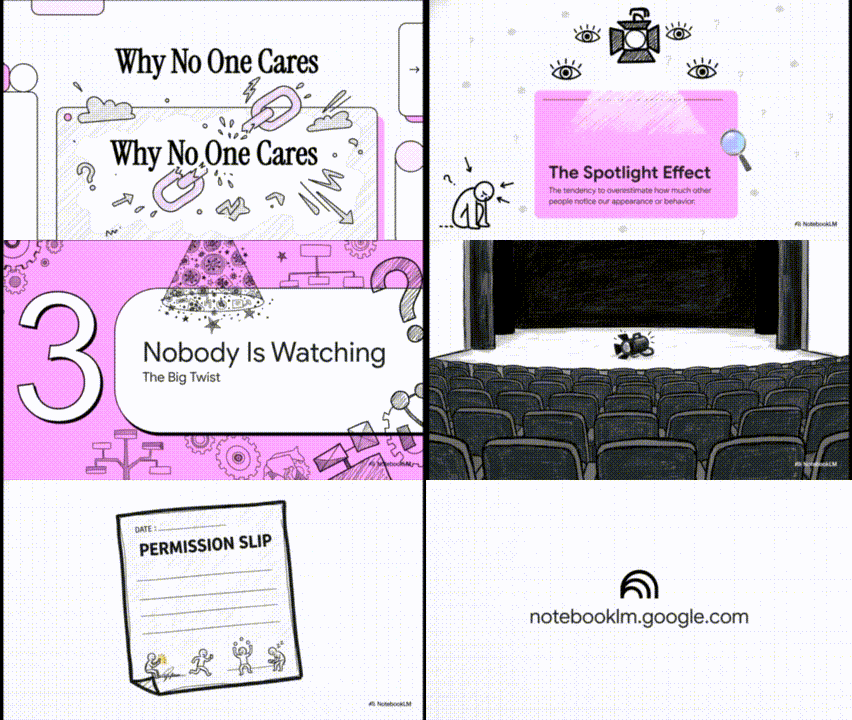
Now here’s the first video we generated — it’s 4:55 long.
I can only share a GIF preview here (no sound), so you’ll have to test the full output on your side.
Note:
Each video should have its own notebook.
This is important for SEO.
Go to the chat panel and ask:
Give me 10 high-click YouTube title ideas for this video.
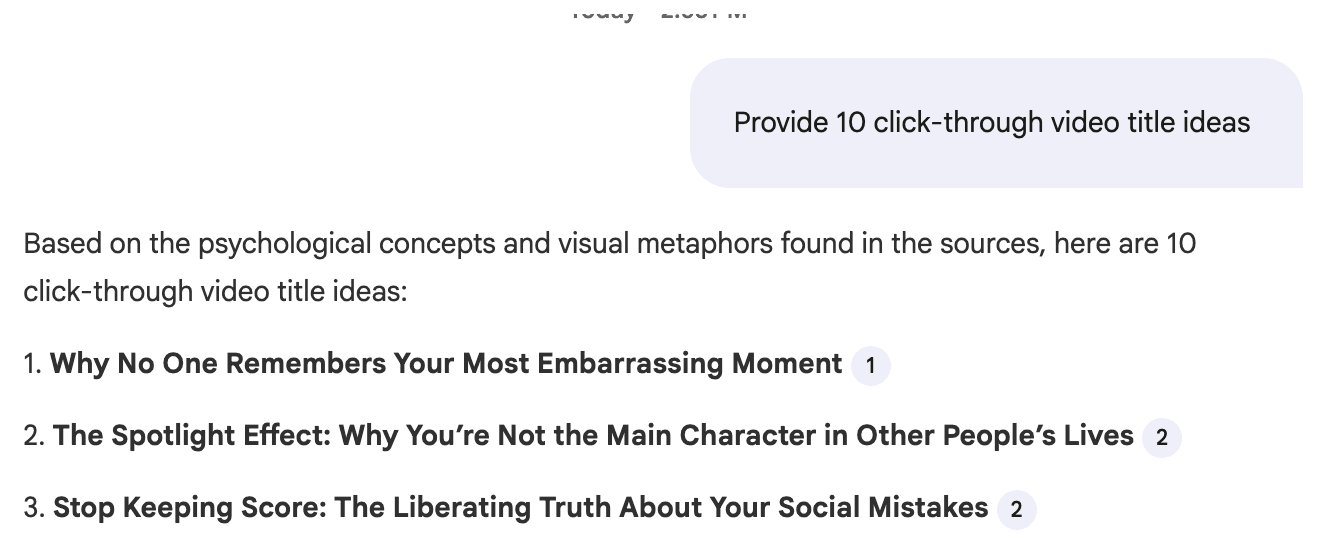
Choose the strongest one and move on.
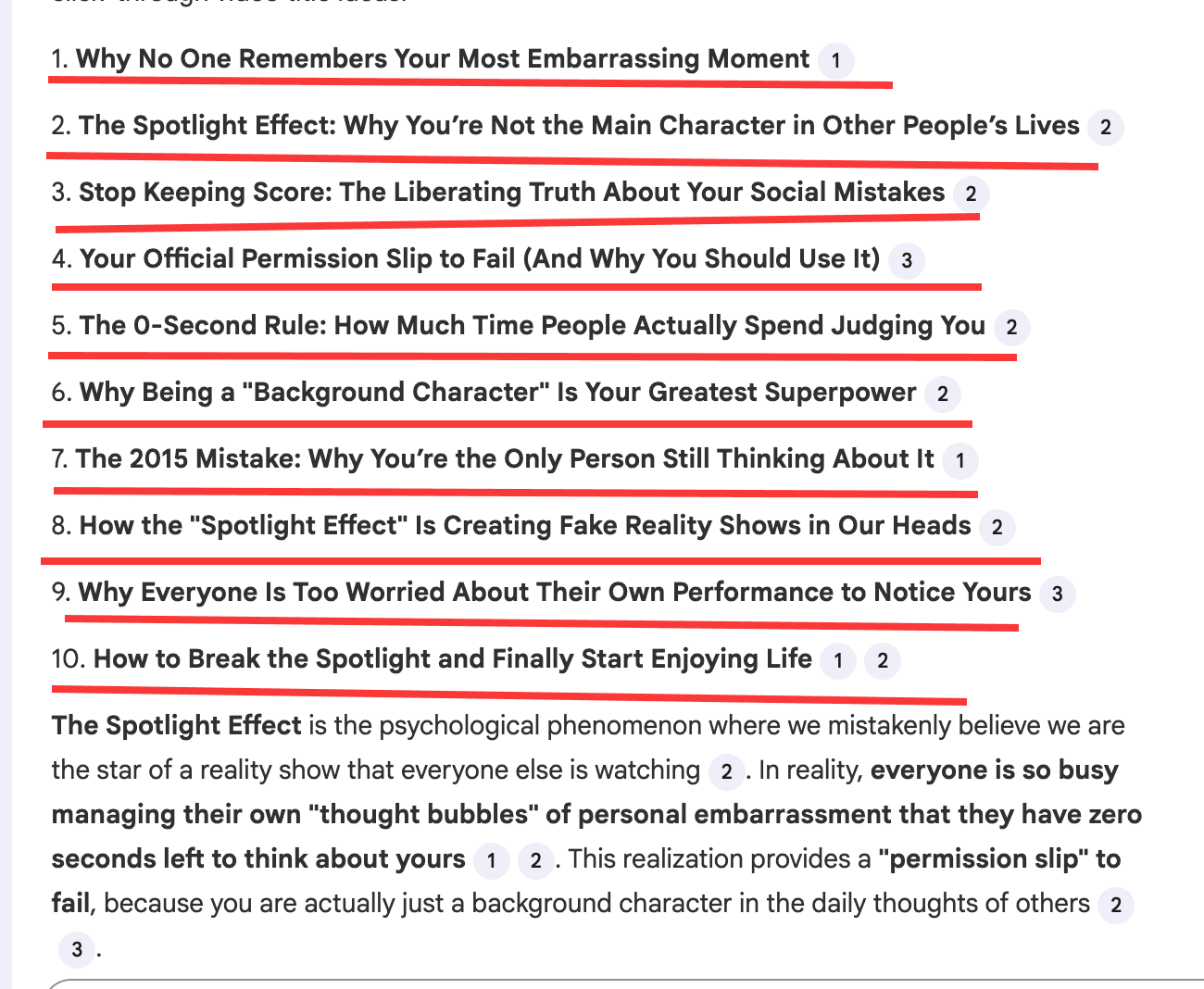
Step 10: Create the Thumbnail (No Reinventing the Wheel)
Thumbnails are everything for automation channels.
Don’t invent new styles.
Copy what already works.
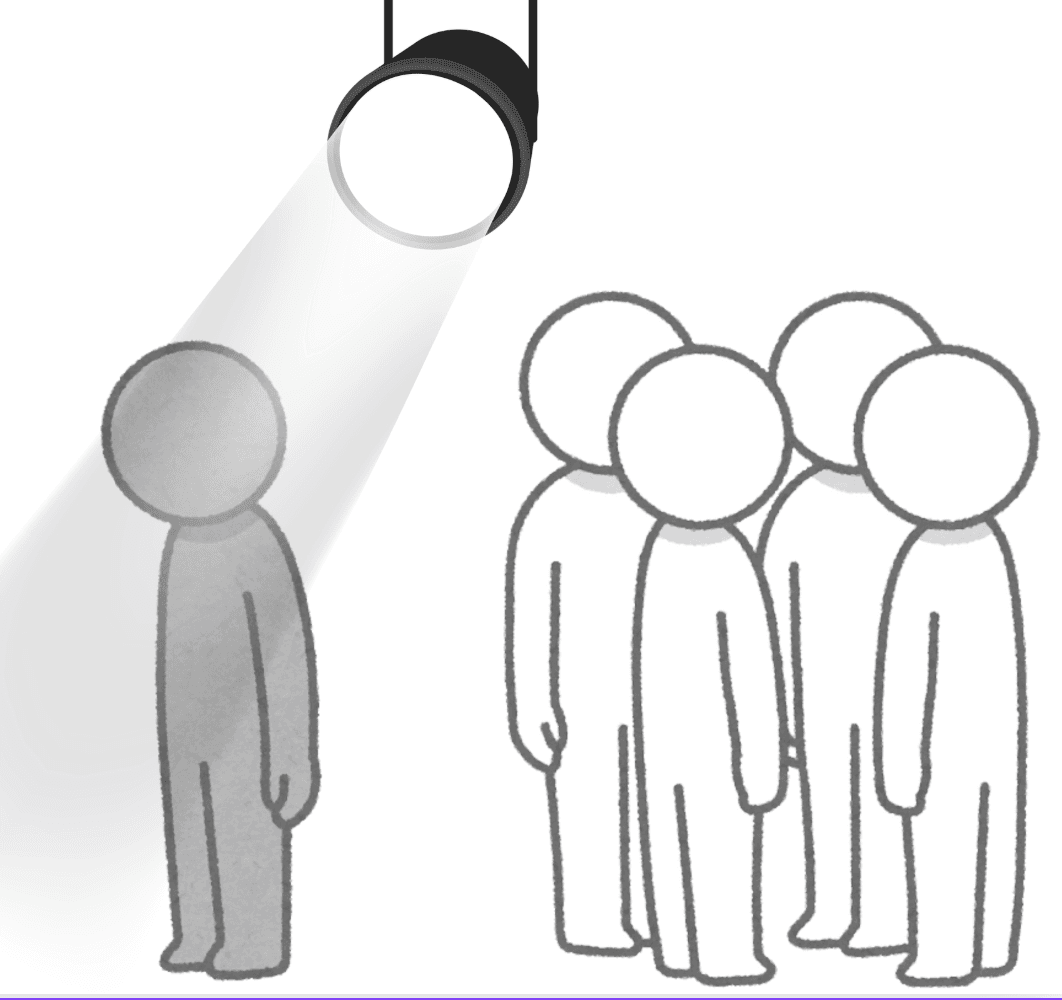
The target channels all use simple stick-figure thumbnails.
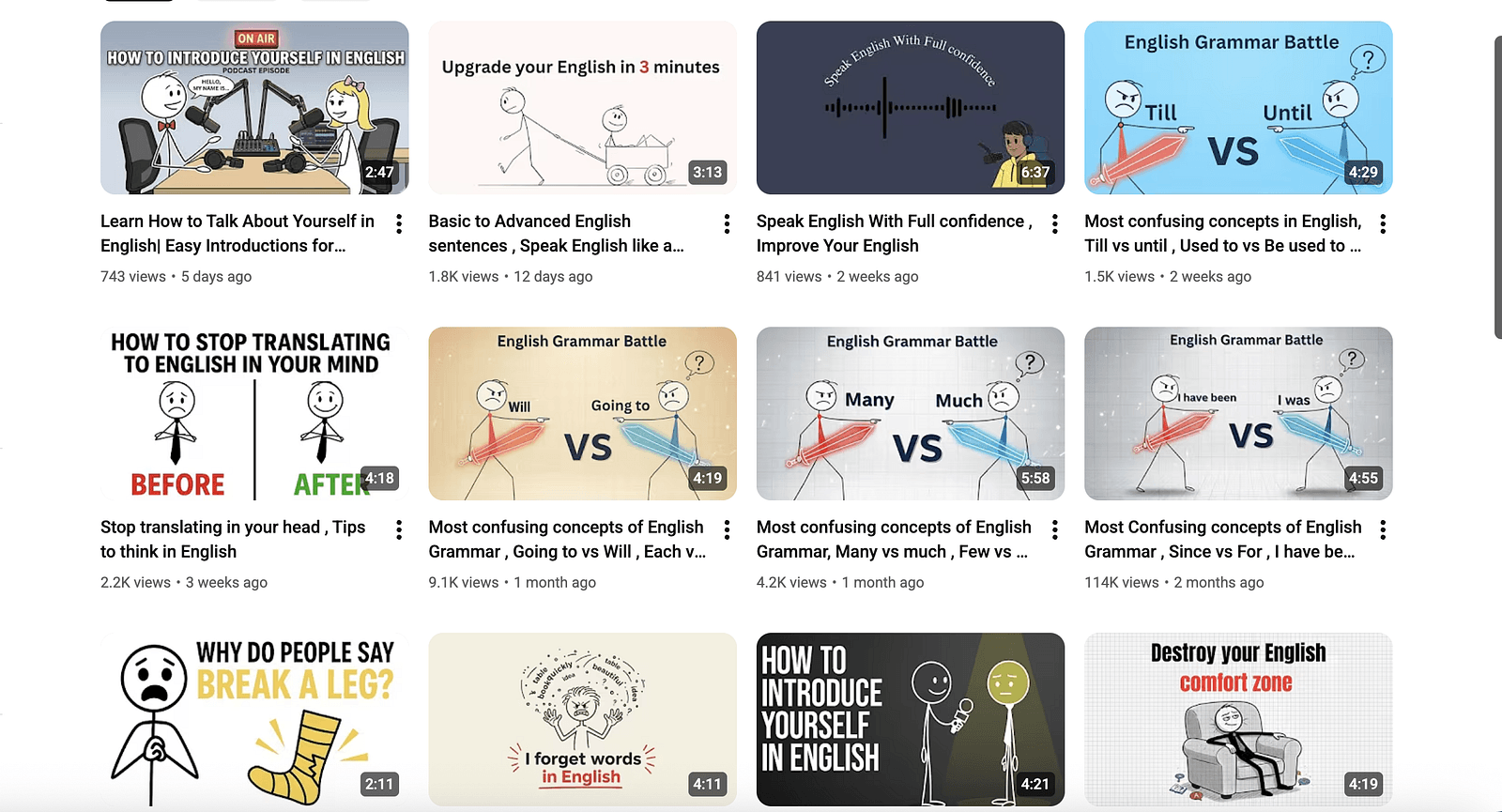
Open Canva
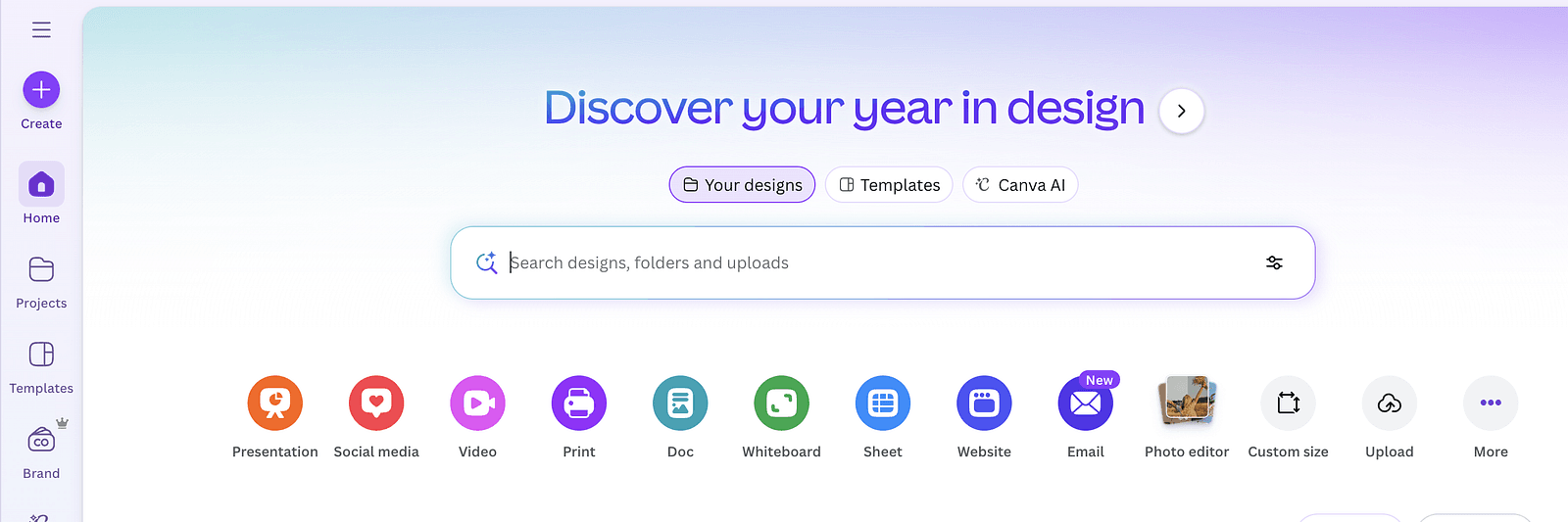
→ Create → YouTube Thumbnail (16:9)
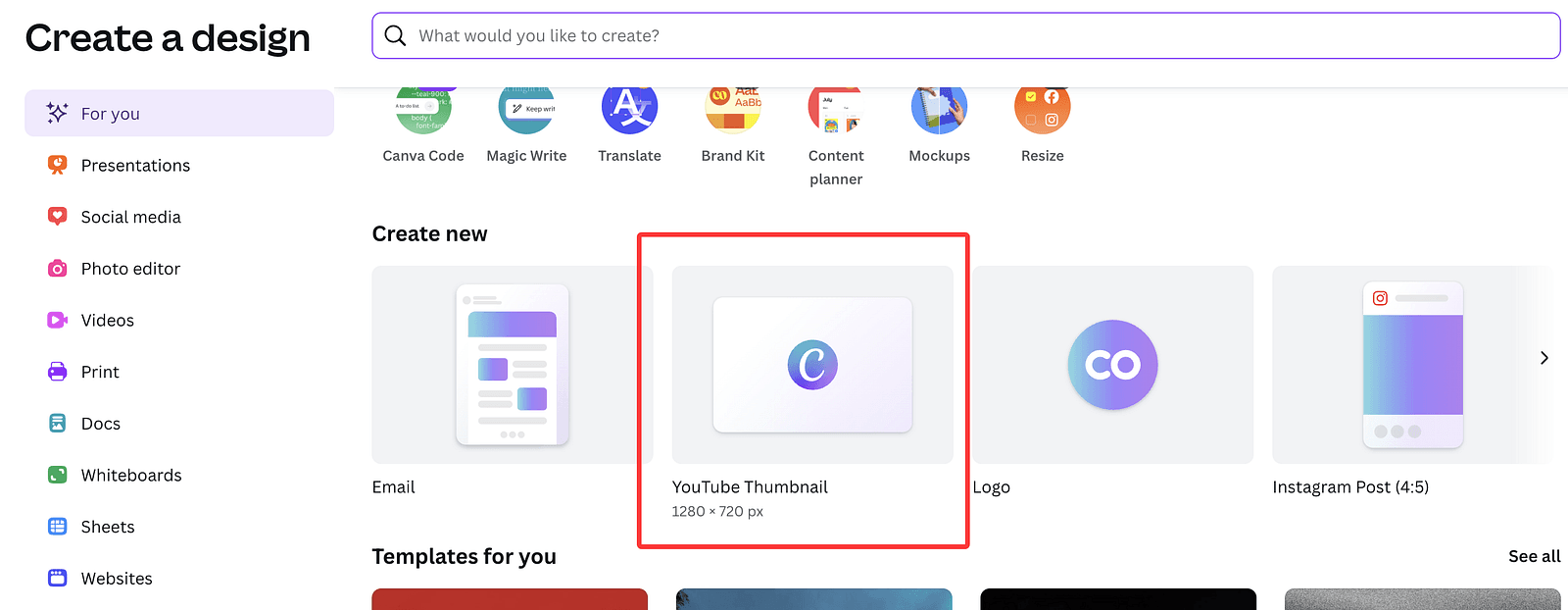
Steps:
- Go to Elements
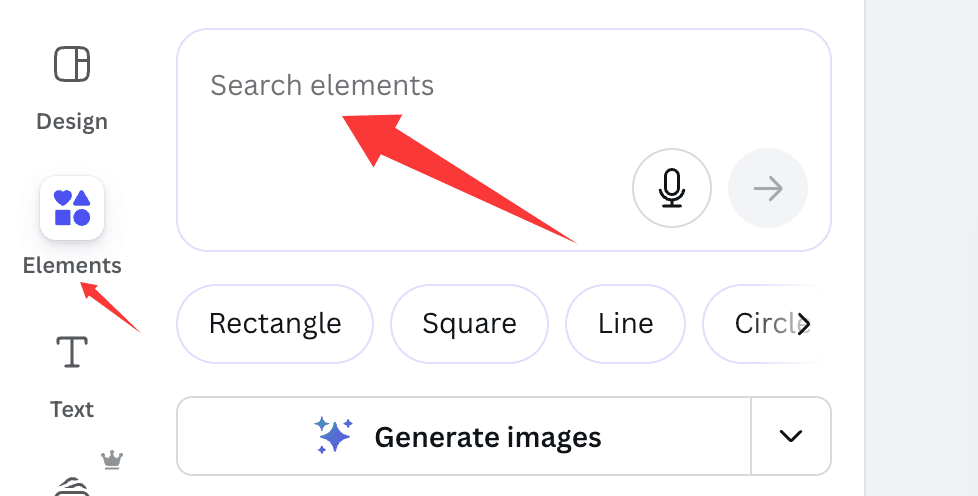
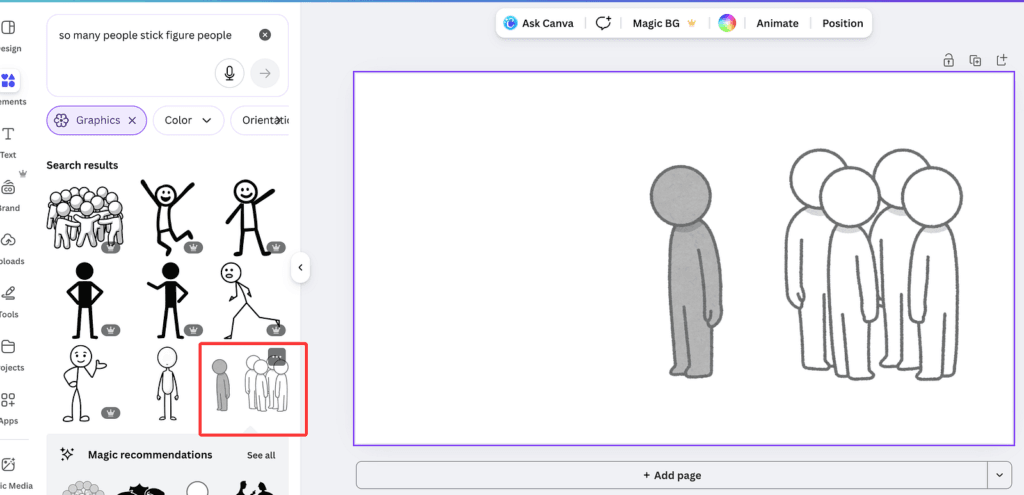
2. Search for:
- “so many people stick figure people”
- “spotlight”
3. Set a background color
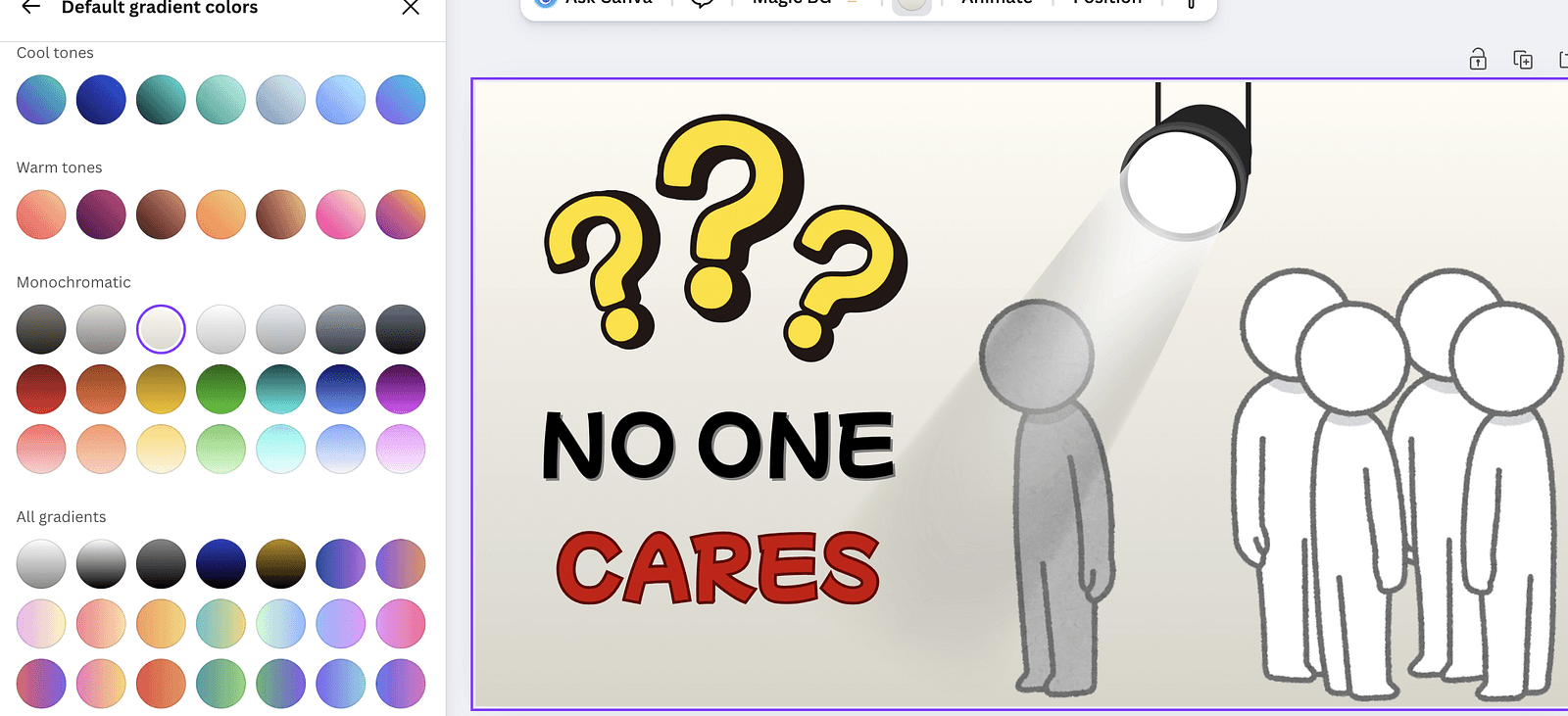
4. Add a bold, readable title
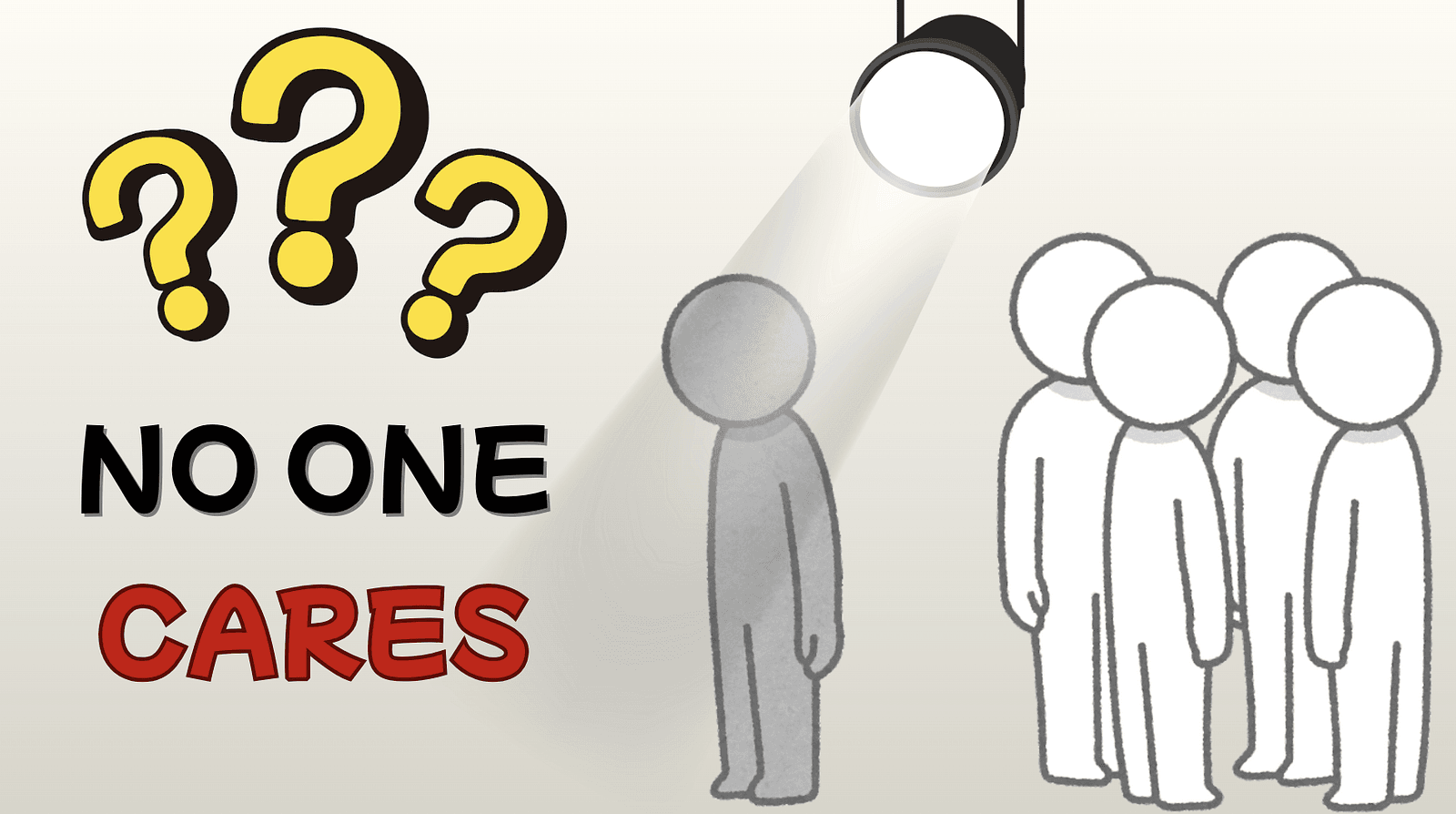
That’s it.
Final Step: Upload and Publish
Your video is ready.
Upload it to your channel.
This niche is already exploding, and many creators are making real money from it.
If you start today, you’re not late — you’re early.
Final Thoughts
This entire system runs on one free Google tool.
No fancy software.
No expensive subscriptions.
No guesswork.
Just smart automation.
If you’ve been waiting for a way to build a YouTube channel without showing your face — this is it.